

The internet has completely transformed the way we work together, enabling people to collaborate regardless of distance.
The emergence of cloud services, as well as the ability for multiple people to work on a single document simultaneously, has become commonplace; however, it is important to know who made which changes to the document.
One such tool is the “Track Changes” feature in Microsoft Word. It allows you to view all edits made by different contributors, thereby preserving the document’s complete editing history. However, this feature is disabled by default and must be enabled before you begin working.
Collaborative document editing in the cloud
For those who regularly work on documents as part of a team, Google Drive is an excellent option. This service makes collaborative editing as convenient as possible thanks to its real-time functionality. Users can open a document simultaneously, see who is currently editing or viewing it, and observe changes immediately after they are made. In practice, this isn’t very convenient if the document is a single, unified file, but if different people are working on different sections of the document, it allows them to work on the document in parallel.
How to enable track changes in a Microsoft Word document
If you have a document that goes through several rounds of editing by different people, you can also enable track changes, which will allow you to see who made what edits to the document.
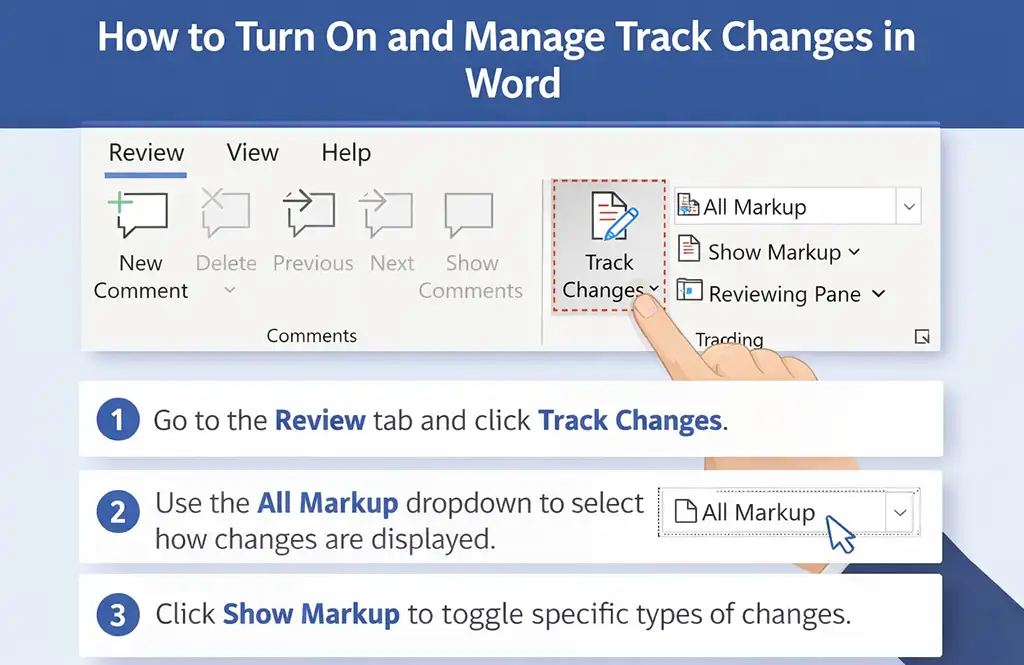
You can enable this feature in just a few seconds. Open the document, go to the “Review” tab, and click “Track Changes.” From that point on, Word begins to track all changes. Deleted text does not disappear completely but is marked, added text is highlighted, and the author’s name appears next to it.

The editor-in-chief or the person approving the final version can review the changes and decide on the final edit. You can go through the document and click “Accept” or “Reject” one by one. This turns editing into a controlled process rather than a chaotic reworking. If there are many changes, you can review them selectively, for example, only insertions or only deletions.
The main rule is to enable track changes before you start editing. If someone starts editing the text with the feature disabled, those changes won’t be marked, and you’ll lose track of them.