
Natural Mode Support is a feature present in some Samsung TVs that automatically adjusts the brightness and contrast of the picture depending on the light level in the room. The TV is equipped with a light sensor that detects changes in light. When the intensity of the ambient light changes, the TV changes its settings to provide an optimal viewing experience. This process is similar to how smartphones automatically adjust screen brightness in auto mode.
How Natural Mode Works on Samsung TVs
When Natural Mode is activated, the TV uses a built-in light sensor, typically located on the side or bottom of the screen to avoid direct exposure to the display. During daylight or in well-lit rooms, the TV automatically increases brightness and contrast to make the image more vivid and easier to see. In darker environments, however, high brightness and contrast can be harsh on the eyes and cause discomfort. In such situations, Natural Mode reduces these settings to provide a more comfortable and balanced viewing experience.
Because personal preferences may vary, it’s a good idea to try Natural Mode in different lighting conditions to see how it affects the picture. While it functions similarly to Auto Brightness, Samsung chose the name Natural Mode to emphasize a more natural and pleasing viewing experience.
How to enable Natural mode on a Samsung TV
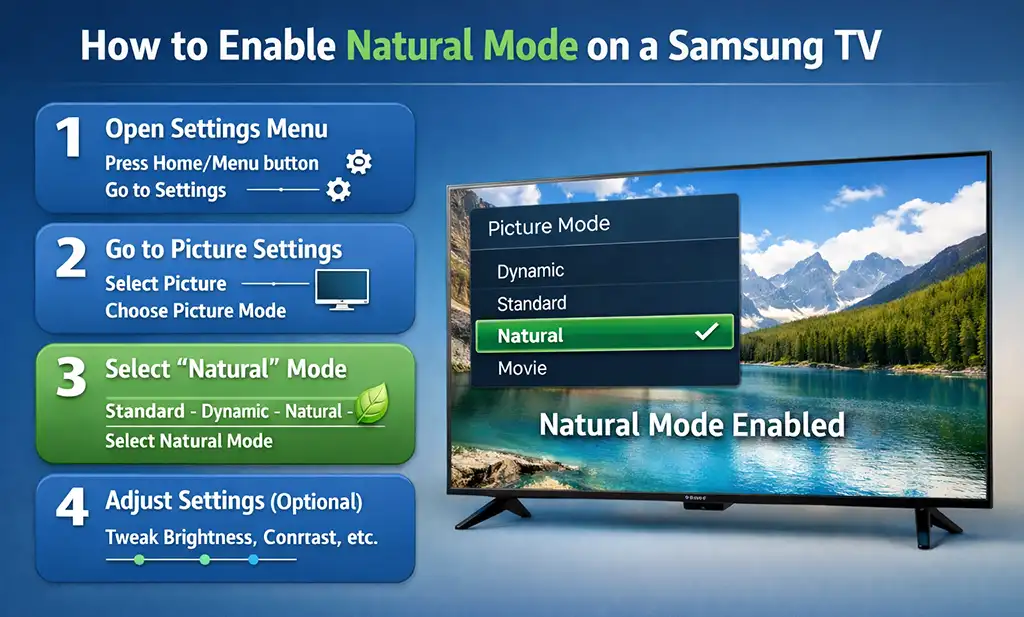
To enable Natural mode, press the Home button on your Samsung remote control to open the main menu, then go to Settings and navigate to the Picture section. There, select “Picture Mode” and choose ‘Natural’ from the available options, which typically include modes such as “Standard,” “Dynamic,” and “Cinema.” Once selected, the TV will apply the Natural mode settings.
If you don’t see “Natural” mode as an option, your TV may not support it, meaning it doesn’t have a light sensor and the corresponding software.