

Subtitle settings on a TV depend on the content source, so if you encounter any difficulties, it’s important to consider the specifics of your situation.
When watching over-the-air or satellite TV (ANT or SAT), subtitle settings are adjusted through the TV’s general settings menu.
When using apps, subtitle control is handled directly within the app settings; in rare cases, the app delegates control of subtitle settings to the TV.
When connected via HDMI, control is transferred to an external device, such as a set-top box or media player, and that is where you need to turn subtitles on or off.
Playing files from USB drives: the TV’s built-in video player allows you to control subtitle settings.
Thus, the correct configuration of subtitles depends directly on the signal source being used, and understanding these differences will help you set them up quickly and without unnecessary complications.
Setting subtitles when watching TV channels on your TV
When watching TV channels using your television’s built-in tuner, subtitle settings can be managed directly through the TV’s system.
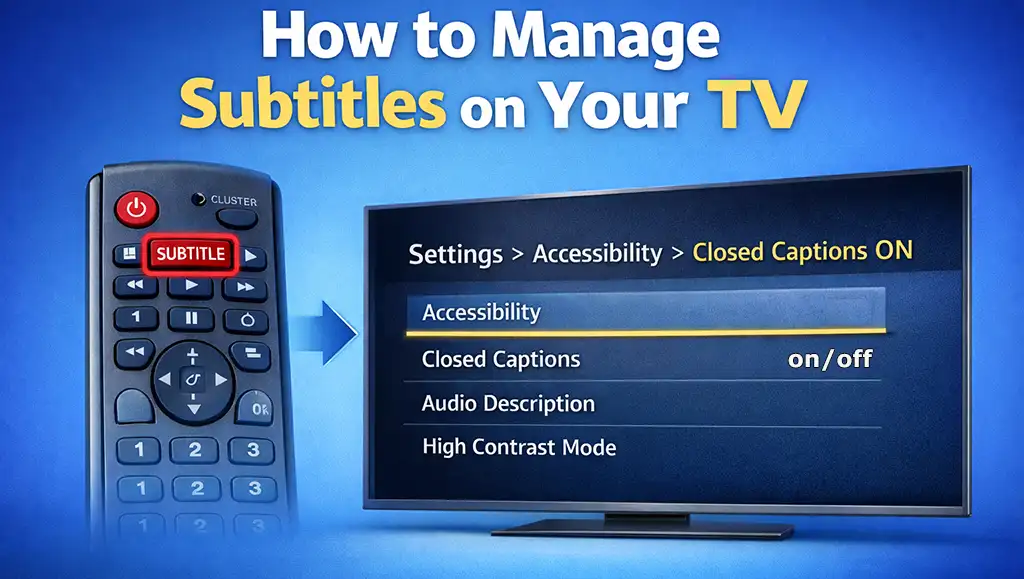
On many models, controlling subtitles is quick and convenient—some remotes even include a dedicated subtitle button for instant access. Alternatively, you can adjust these settings through the main menu. While the exact navigation may vary depending on your TV’s operating system, the process typically begins by pressing the “Settings” or “Menu” button on the remote control.
From there, navigate to the “Sound” or “Accessibility” section, where you will usually find an option labeled “Subtitles” or “Closed Captions.” This is where you can easily turn subtitles on or off according to your preference.
It’s worth noting that subtitles are transmitted as metadata within the digital broadcast signal and displayed on your screen when enabled. However, with older films produced before the digital era, subtitles were often embedded directly into the image itself. In such cases, they are a permanent part of the video and cannot be disabled.
How to set up subtitles when using apps
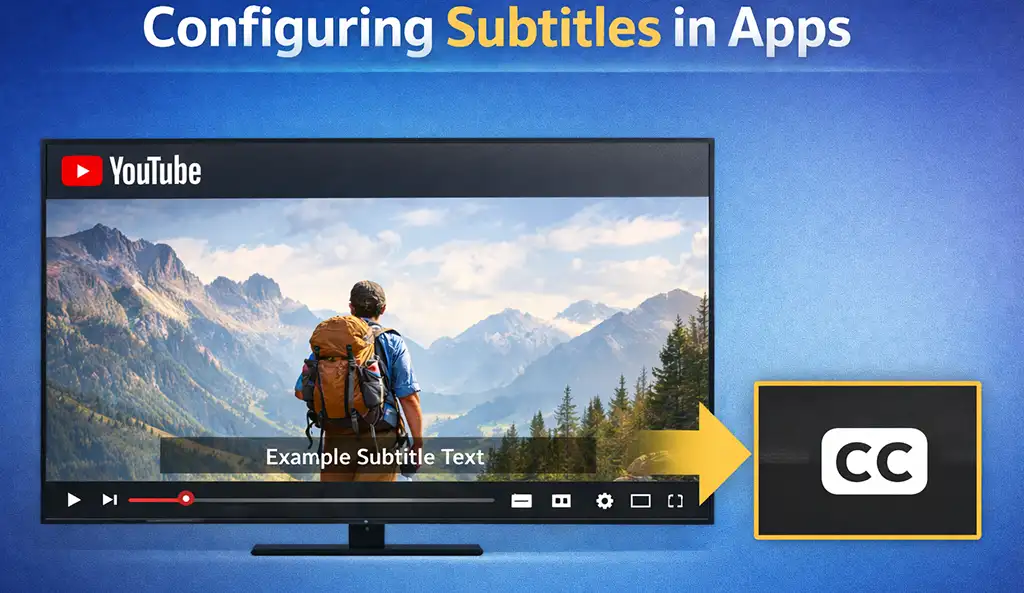
When watching videos through apps, you can easily manage subtitles in the app’s settings. Most apps allow you to turn subtitles on or off, as well as choose your preferred language.
Since interfaces may differ between apps, look for the CC (captions) option—usually found under a gear icon or as a separate button on the screen. Once enabled, you can further customize subtitles to suit your preferences, including adjusting their size, color, and even font style.
Controlling subtitles when connected via HDMI and USB
In this case, subtitle control depends on the video playback source.
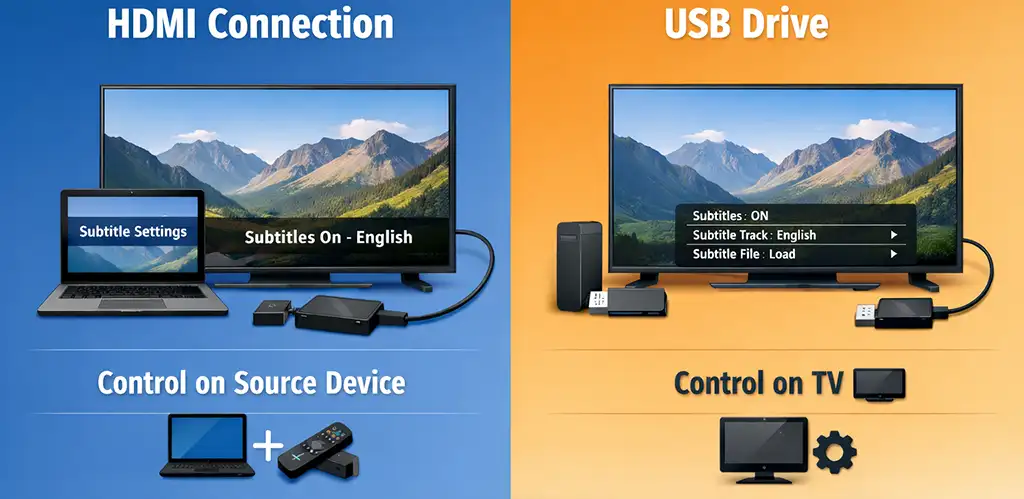
When connected via HDMI, the TV receives a ready-made video signal with subtitles already embedded. In other words, the TV essentially acts as a monitor. This means that all settings—turning subtitles on or off, selecting a language, or choosing a display format—are controlled on the source device, such as a laptop or a streaming device like the Amazon Fire TV Stick.
When playing a video from a USB flash drive or an external hard drive, the file is processed by the TV’s built-in media player, which handles the subtitles. You can control this through the media player menu: turn subtitles on or off if they are embedded in the video, or load external subtitle files.
It is important to note that TVs support a limited number of formats. Therefore, the presence of subtitles in a file does not guarantee they will be displayed. Unlike computers, which typically have more codecs installed, a TV may not recognize the subtitle format or encoding, causing them not to appear.