
Sometimes the picture size on a Samsung TV may be set incorrectly, resulting in the image being displayed incorrectly. This is particularly noticeable in images that contain controls; for example, when streaming video from a laptop to the TV, you may notice that the edges of the image extend beyond the screen.
Samsung TVs, like many other models, feature an “Image Size” setting that allows you to adjust the image’s position on the screen.
Available image size options on Samsung TVs
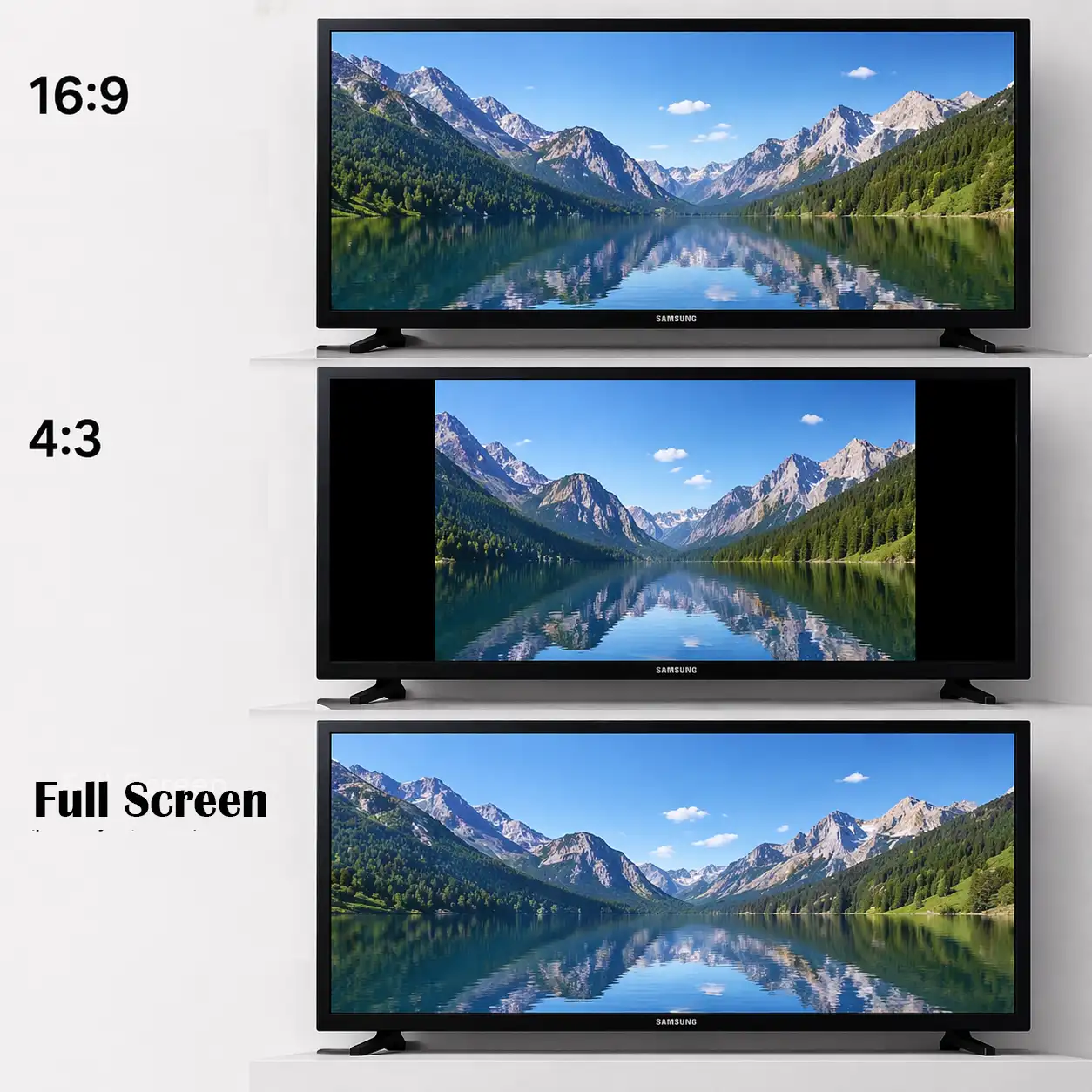
Samsung TVs offer several picture size modes. These settings are independent of video resolution and can be changed at any time depending on the content you’re watching.
16:9 mode is the standard widescreen format used for modern TV channels, streaming services, and most video content. This is generally the best option for everyday viewing, although in some cases the edges of the image may be slightly cropped. This is because, in this format, part of the image extends beyond the screen; this is done intentionally so that the edges of the image are not visible on the screen when watching TV programs.
4:3 mode is an older format used for classic television and older recordings. It is primarily intended for older content, when you want to see the original version of a movie or show on your TV screen without stretching.
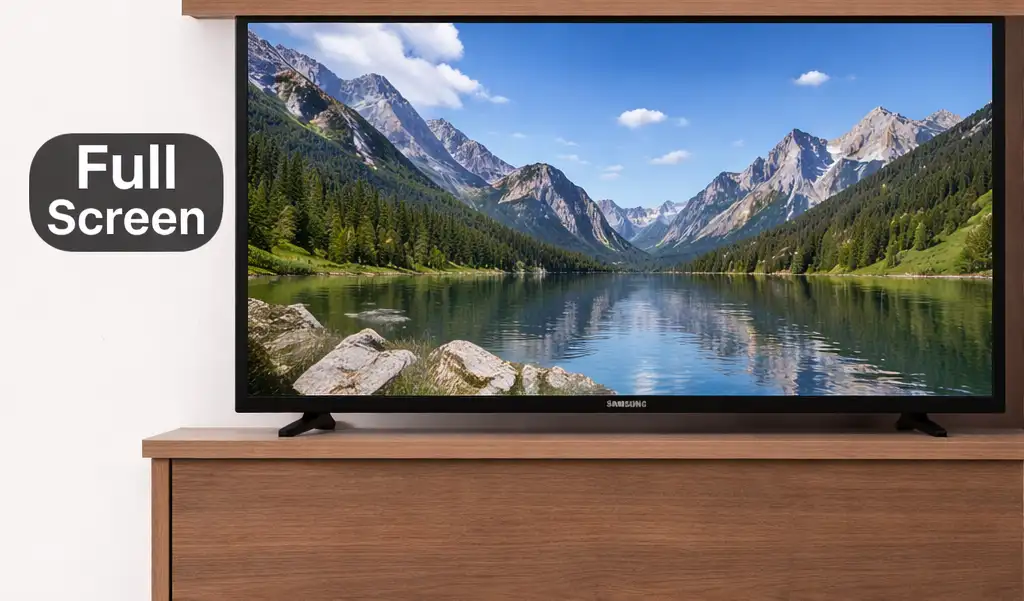
The “Fit to Screen” setting ensures that the entire image is displayed without cropping. This is often the recommended setting, especially when using a computer, streaming device, or game console.
How to change the image size on a Samsung TV
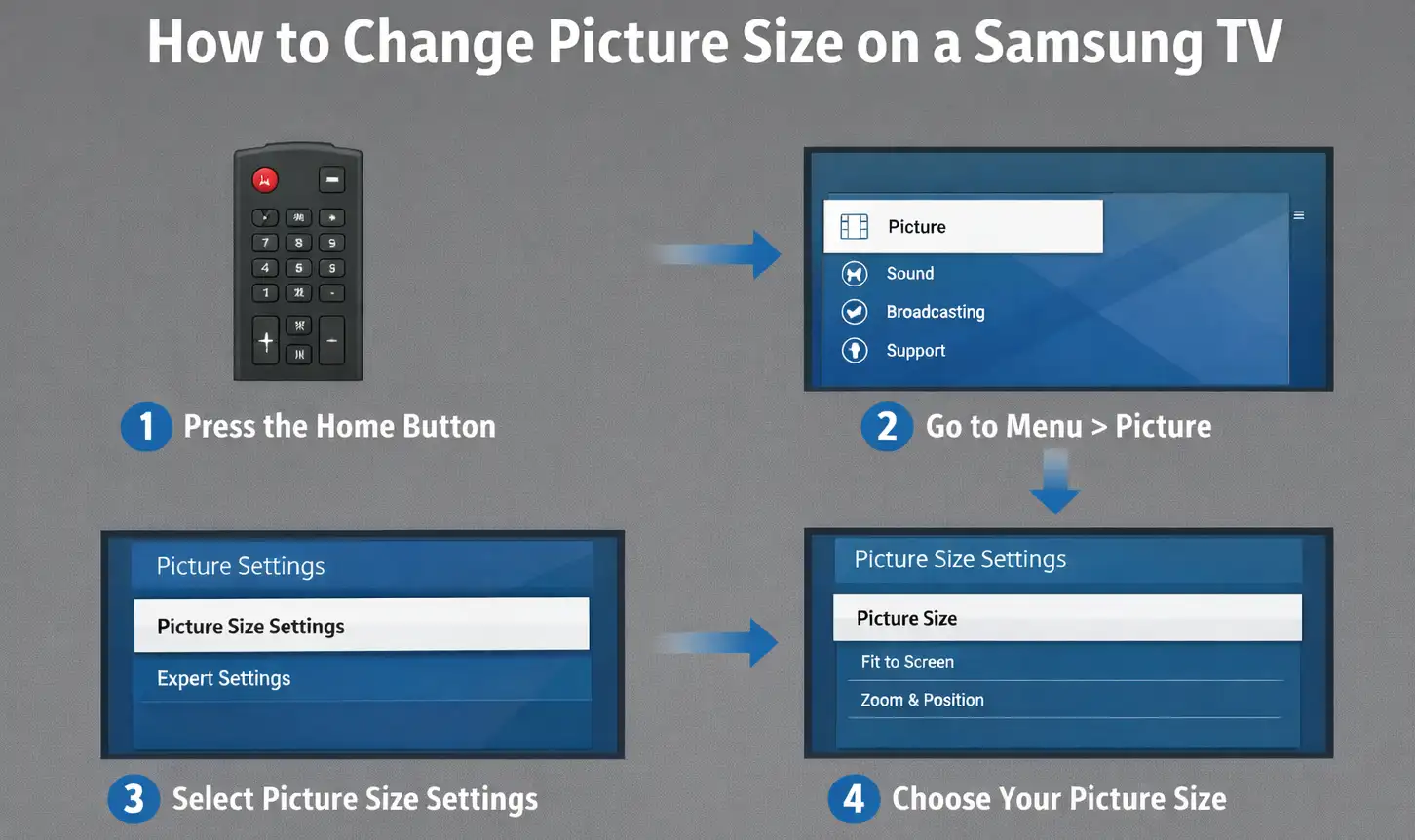
To adjust the picture size on a Samsung TV, press the “Home” button on the remote control, then go to “Menu.” Open “Settings” and select “Picture.” Then select “Picture Size Settings,” open “Picture Size,” and choose the option that best suits your screen.