
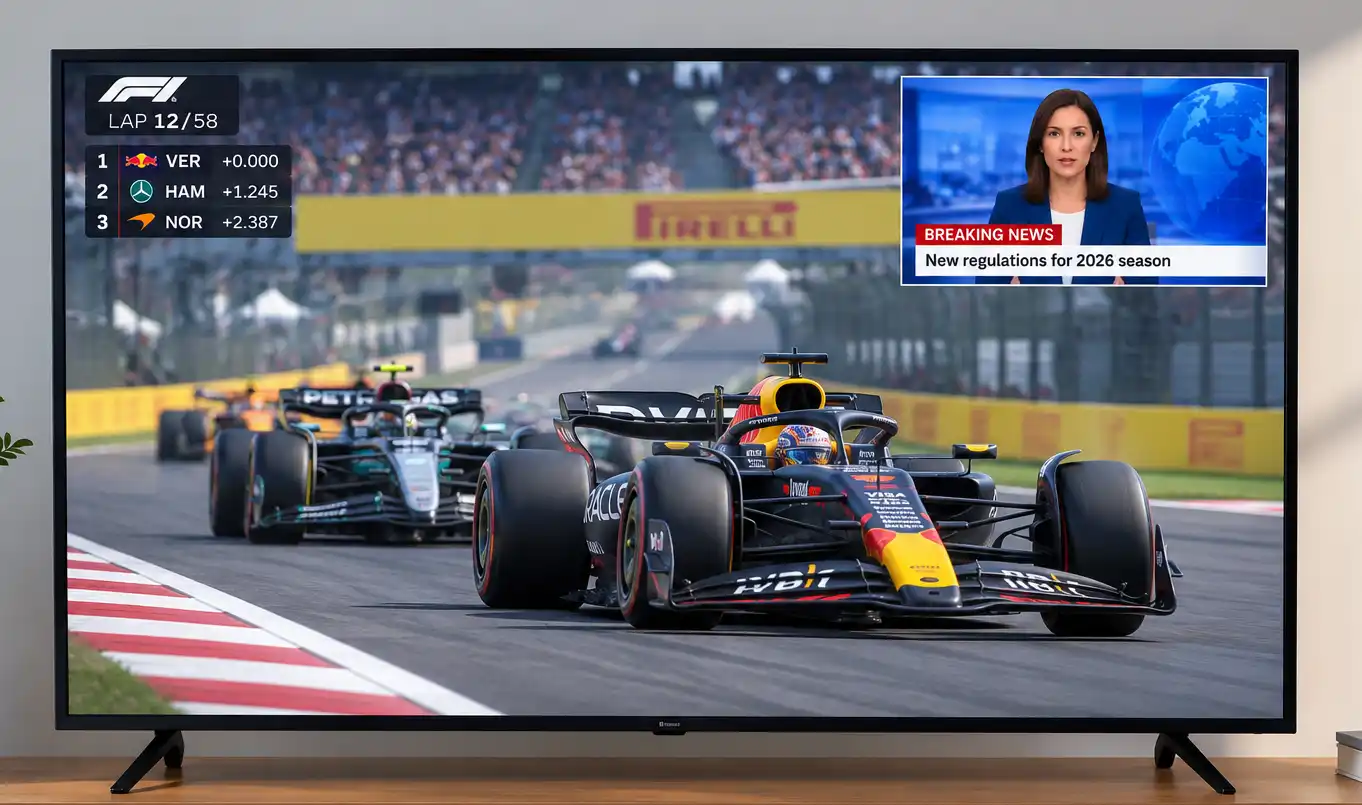
The Picture-in-Picture (PiP) feature allows you to watch a second video in a small window overlaid on the main image. Modern TVs take this concept further with Multi View, which lets you display multiple sources or apps simultaneously by splitting the screen. For example, you can watch a sports game while keeping a streaming app open alongside it, or view your computer screen next to a TV broadcast.
On computers, working with multiple windows at once has been standard practice for decades. TVs, however, initially lacked the processing power needed to decode and scale multiple video streams simultaneously. As processors became more powerful, PiP appeared on selected TV models. Some TVs were equipped with two tuners, allowing viewers to watch one TV channel while displaying another in a small window. The introduction of digital inputs expanded these capabilities, and the arrival of smart TVs made it possible to display apps alongside other content.
Using Multi View on Samsung TVs
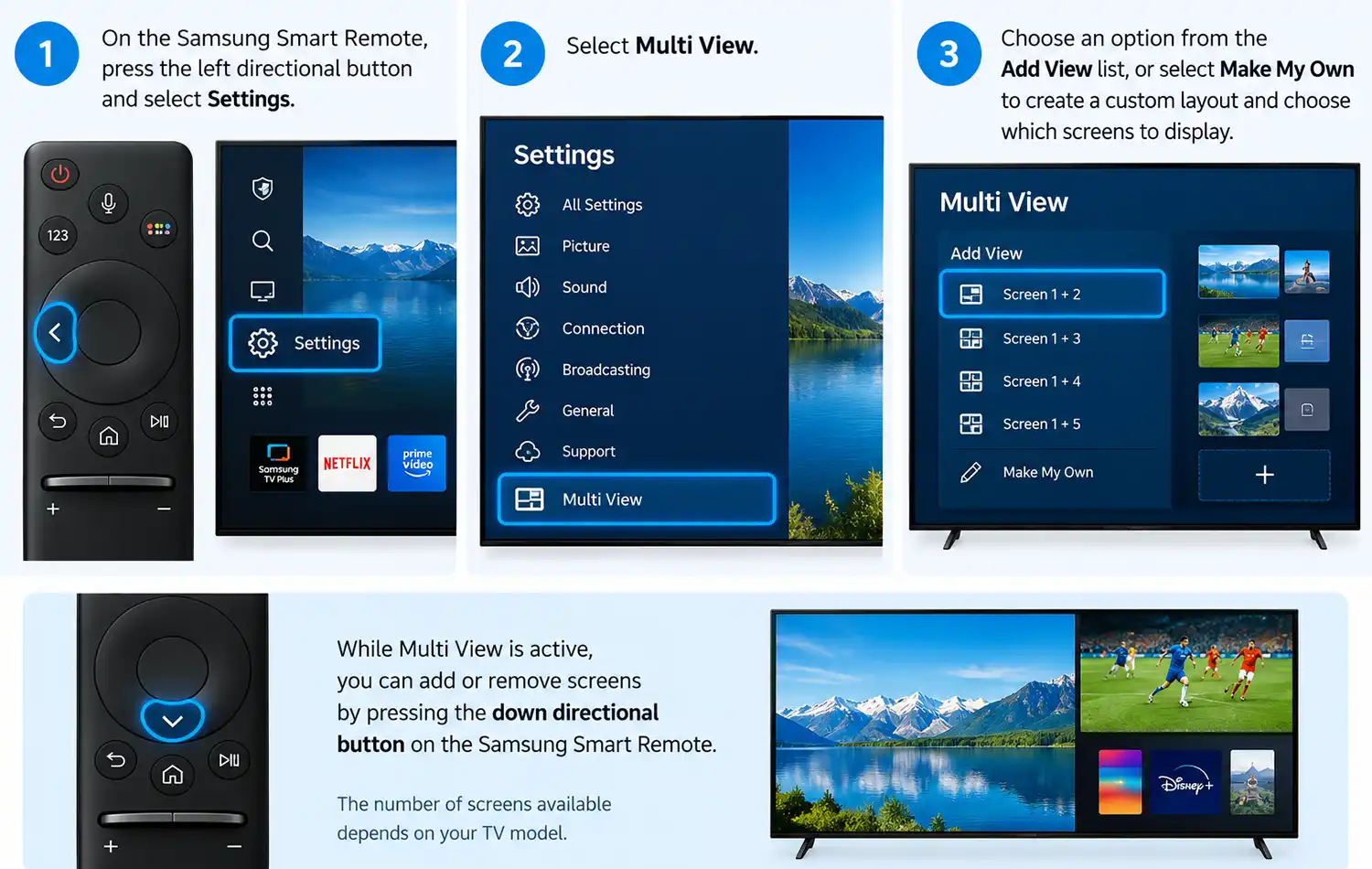
How to Start Multi View
- On the Samsung Smart Remote, press the left directional button and select Settings.
- Select Multi View.
- Choose an option from the Add View list, or select Make My Own to create a custom layout and choose which screens to display.
While Multi View is active, you can add or remove screens by pressing the down directional button on the Samsung Smart Remote. The number of screens available depends on your TV model.
Menu Options in Multi View
Press the Select button on the remote to open the menu. Available options may vary depending on your TV model and region.
| Option | Description |
|---|---|
| App/Source | Selects from the available apps and input sources. |
| Content | Displays the content currently shown on the selected screen. You can select it to control the screen or change its app or source. |
| Maximize | Expands the selected screen to full-screen mode. |
| Return to Multi View | Restores a maximized screen to its original size and returns to Multi View. |
| Screen Size | Adjusts the size of the screens in Multi View. |
| Picture-in-Picture | Sets the position of the small window over the main screen. The screen currently in focus, on the left or right, becomes the small window. |
| Screen Position | Changes the position of the screens in the Multi View layout. |
| Swap Screen | Switches the small window with the full-size screen. |
| PIP Off | Closes the small window and returns to the regular Multi View layout. |
| Double Audio | Plays audio from both screens simultaneously and lets you adjust the volume balance between them. |
| Bluetooth Speaker | Plays audio through a connected Bluetooth speaker. |
| Full Screen | Exits Multi View and displays the selected content in full-screen mode. |
| Delete | Removes the selected screen from Multi View. |
To exit Multi View, press and hold the Back button on the Samsung Smart Remote. Depending on your model, you may also be able to use a dedicated Multi View button.
Limitations of Multi View on Samsung TVs
- Multi View supports only compatible TV broadcasts, external devices, and apps. Some apps are not available.
- If you cast content from a mobile device while Multi View is active, it opens within the Multi View layout.
- Some TV models let you view a camera connected through the SmartThings app on your phone.
- Q-Symphony is not supported while using Multi View.
- When you use an external device connected through a receiver or soundbar in Multi View, audio plays through the TV speakers instead of the receiver or soundbar.
Using Multi View on LG TVs
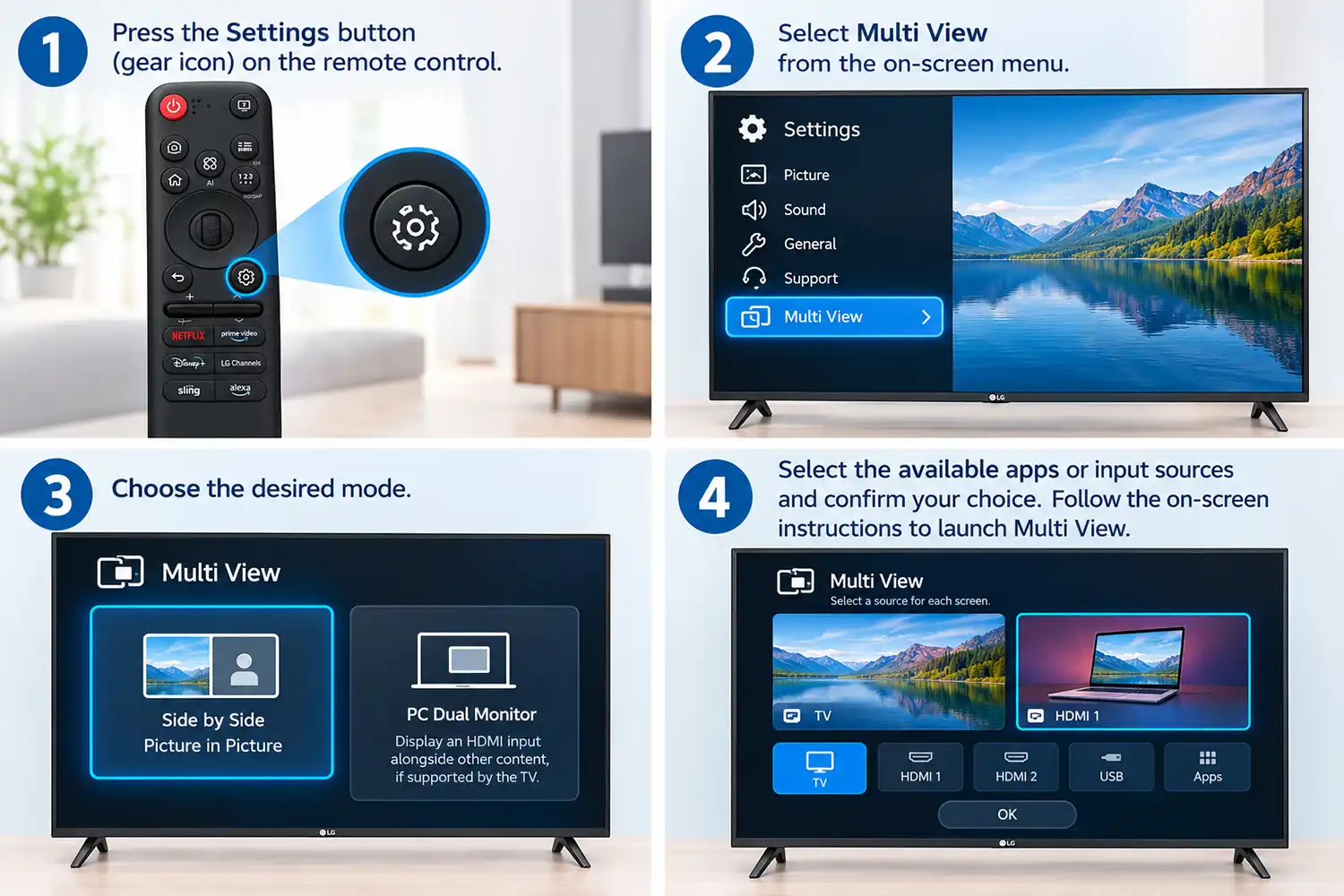
On LG TVs running webOS, Multi View lets you display multiple apps or video sources on the screen at the same time. Depending on the model, you can split the screen into two sections or display one source in a smaller window over another.
How to Start Multi View
- Press the Settings button (gear icon) on the remote control.
- Select Multi View from the on-screen menu.
- Choose the desired mode:
- Side by Side / Picture in Picture: display two supported sources simultaneously.
- PC Dual Monitor: display an HDMI input alongside other content, if supported by the TV.
- Select the available apps or input sources and confirm your choice. Follow the on-screen instructions to launch Multi View.
The Recommended Combinations section may also suggest pairs of apps based on your recent activity or available options.
Controls While Multi View Is Running
While Multi View is active, you can switch audio between the two screens or play sound from both simultaneously. When mixing audio, you can adjust the volume balance between the screens.
The additional settings menu provides more control over the layout and content.
| Option | Description |
|---|---|
| Change view type | Switches between available Multi View modes. |
| Add app | Adds an app to Multi View or removes one. |
| Change app | Replaces the currently selected app. |
| Full-screen control | Opens the selected app in full-screen mode. |
| Move | Changes the position of the secondary window. |
| Size | Adjusts the size of the secondary window. |
| Exit app | Closes the currently running app. |
| Change input | Switches the HDMI input used in PC Dual Monitor mode. |
| Close PC Dual Monitor | Exits PC Dual Monitor mode. |
Limitations of Multi View on LG TVs
- Available features depend on the TV model, region, selected mode, and supported apps or sources.
- An HDMI input may not appear if the connected device is turned off.
- Some content cannot be displayed in Multi View.
- If an app does not support Multi View, the TV may suggest compatible alternatives.
- Not all menu options are available in every mode.
If Multi View Is Missing or Unavailable
Check whether your exact TV model and region support Multi View. Make sure the selected apps and sources are compatible, and turn on any device connected through HDMI so the TV can detect its input.