
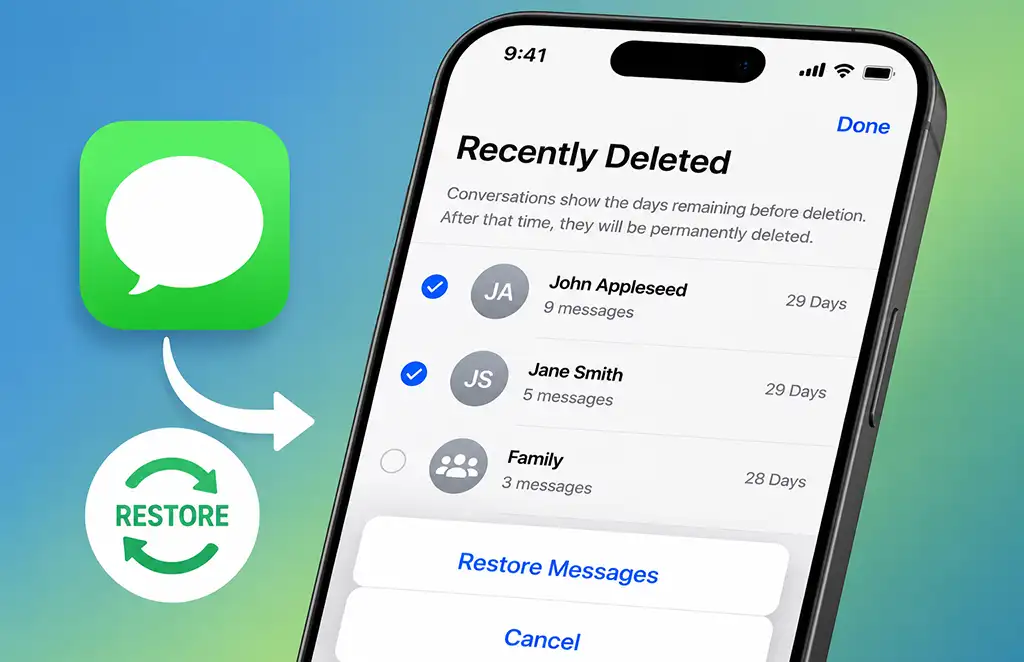
If you deleted an important text message or conversation on your iPhone, you may still be able to recover it. The easiest method is to use the Recently Deleted folder in the Messages app. If the messages are no longer there, you can try restoring an older iCloud, Finder, or iTunes backup.
The available recovery options depend on how long ago the messages were deleted and whether you have a backup from before the deletion.
How to restore messages in the messages app
How to Recover Recently Deleted Messages on an iPhone
If your iPhone is running iOS 16 or later, deleted messages are moved to the “Recently Deleted” folder instead of being deleted immediately. You can recover them from there within a limited time frame—specifically, 30 days.
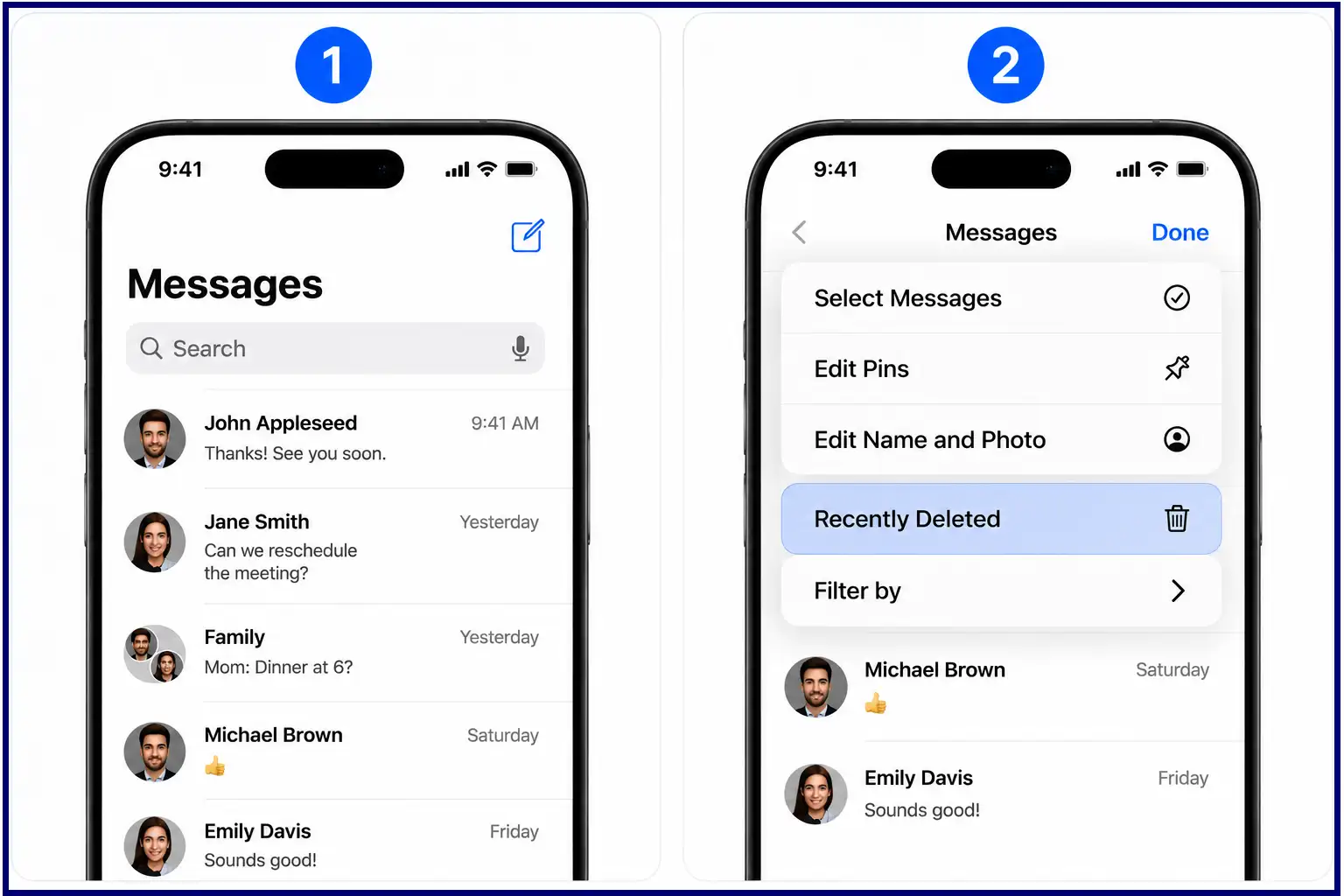
To restore deleted messages:
- Open the Messages app.
- Tap “Filters” or “Edit” at the top of the screen, depending on your iOS version.
- Select “Recently Deleted.”
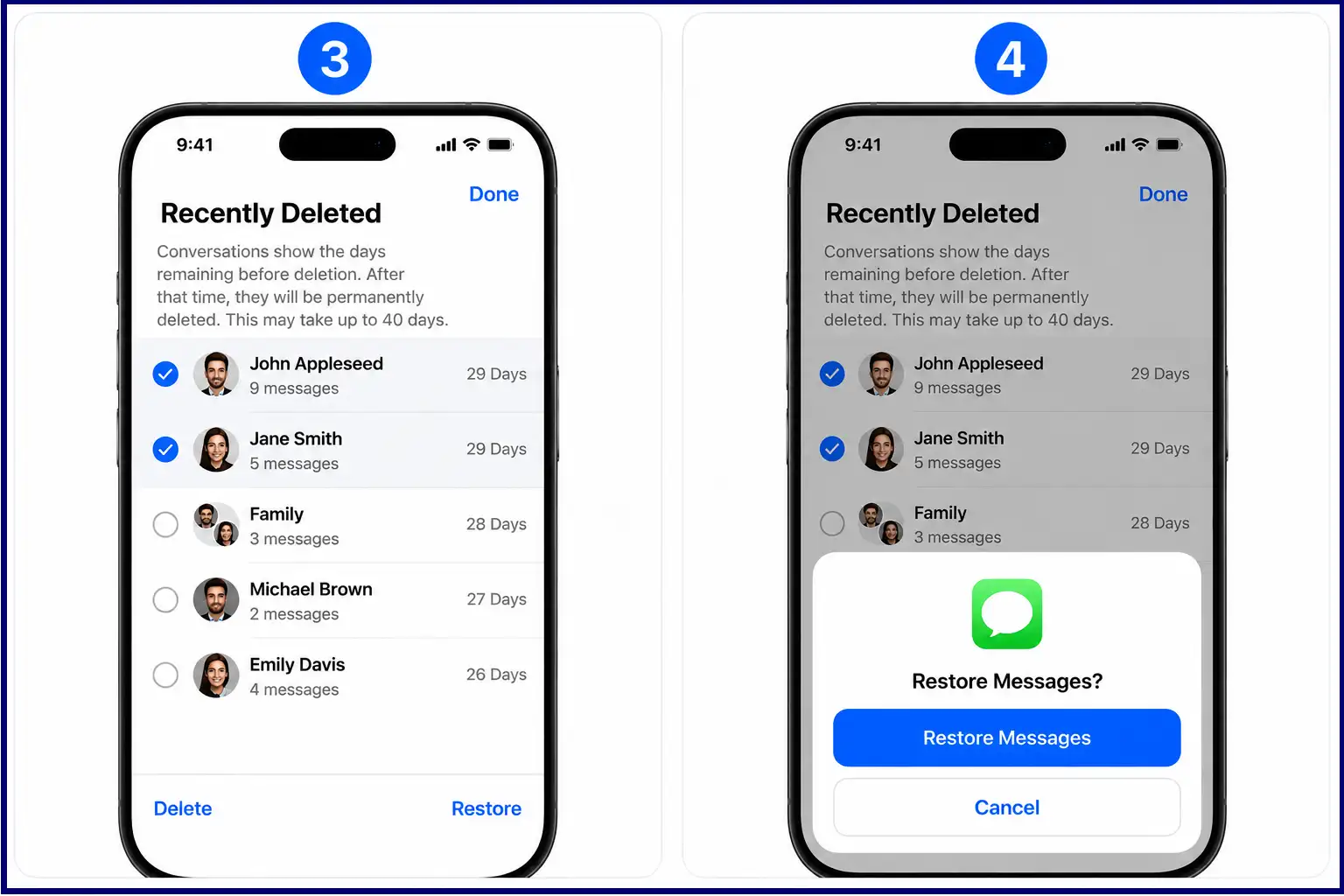
- Select the conversation or individual messages you want to restore.
- Tap “Restore.”
The restored messages will reappear in your conversation list. This is the easiest way to restore deleted messages, as it does not require restoring your iPhone from a backup.
After 30 days, messages are permanently deleted from the “Recently Deleted” section and cannot be restored using this feature. There is also an important limitation. Messages deleted before updating to iOS 16 cannot be restored using the “Recently Deleted” feature.
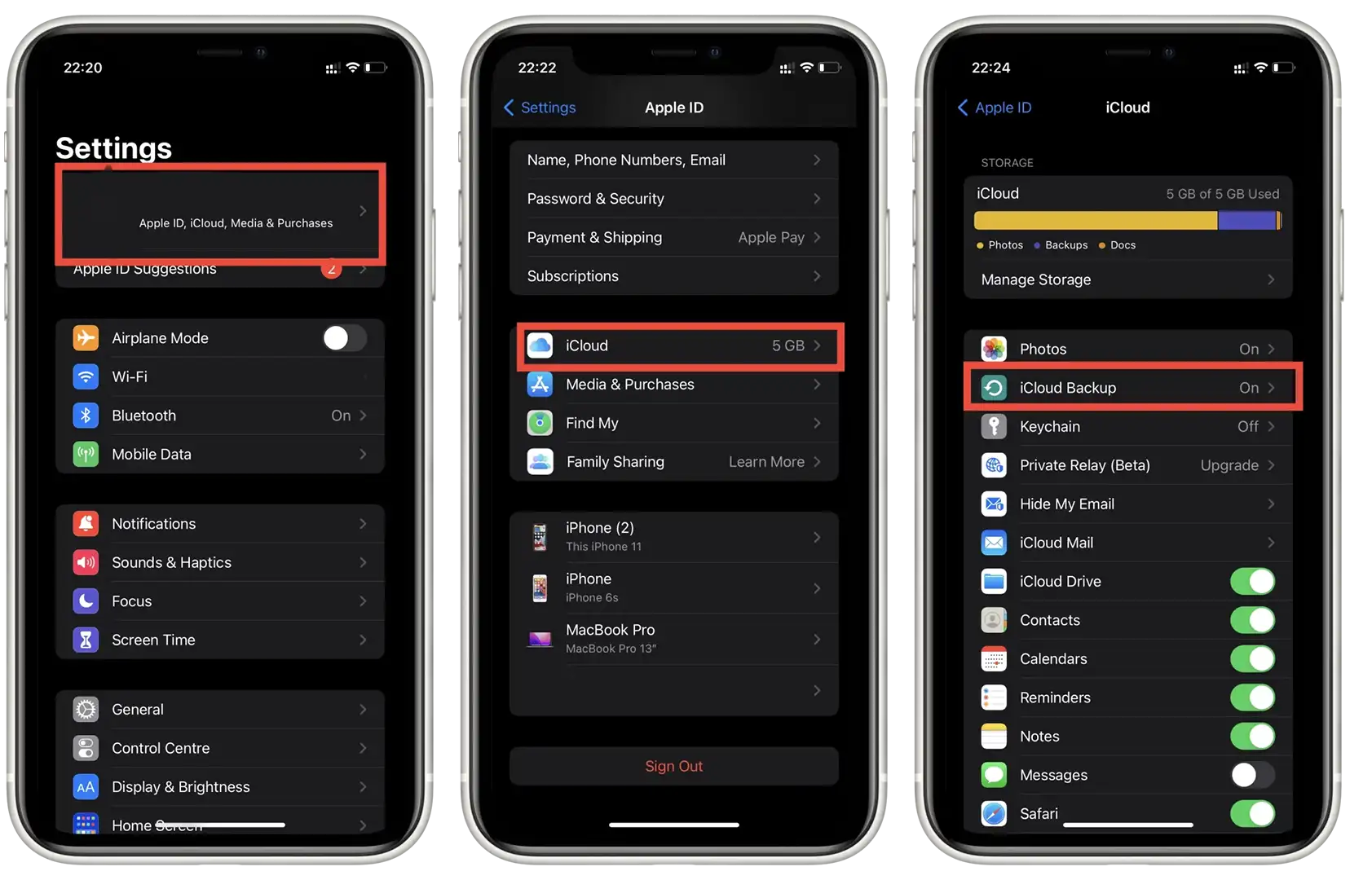
How to Recover Deleted Messages from an iCloud Backup
If the messages are no longer in the “Recently Deleted” folder, they were likely deleted more than 30 days ago and can no longer be recovered using the standard recovery feature. However, you may still be able to recover them from an older iCloud backup. Keep in mind that restoring an iCloud backup is a last resort because it replaces the current data on your iPhone with the data stored in the backup. As a result, any newer data created after the backup was made may be lost.
This method works only if you have an iCloud backup that was created before the messages were deleted. Before restoring the backup, make sure that important current data is backed up. Restoring an older backup can replace the current data on your iPhone with the data contained in that backup.
To restore an iPhone from an iCloud backup:
- Open Settings.
- Go to General.
- Select Transfer or Reset iPhone.
- Tap Erase All Content and Settings.
- Set up the iPhone again.
- When the Apps & Data screen appears, select From iCloud Backup.
- Sign in to your Apple Account.
- Choose a backup created before the messages were deleted.
After the restore is complete, check the Messages app to see whether the deleted messages are available.
How to Recover Deleted Messages from a Finder or iTunes Backup
If you previously backed up your iPhone to a Mac or Windows PC, you may be able to recover deleted messages from an older backup.
On newer Macs, iPhone backups are managed through Finder. On Windows PCs and older versions of macOS, backups may have been created using iTunes. The important requirement is that the backup must have been created before the messages were deleted. To restore an iPhone from a computer backup:
- Connect the iPhone to the computer used to create the backup.
- Open Finder on a Mac or iTunes on a Windows PC or older Mac.
- Select your iPhone.
- Choose the option to restore the backup.
- Select a backup created before the messages were deleted.
- Start the restore process.
As with an iCloud backup, restoring an older computer backup can replace newer data on the iPhone. Make sure that important current data is backed up before starting the restore.
Restoring messages from a backup without losing much current data is possible, but it requires some extra steps.
Before restoring an older backup, make a new backup of your iPhone to preserve its current state. Then restore the older backup that may contain the deleted message. Once you find the message, forward it or copy the text and save it on another device or to a cloud service that is not linked to your iPhone. After that, you can restore your iPhone using the most recent backup you created.