


Wi-Fi issues can have various causes. First, determine whether the problem affects all devices or only one. If none of the devices connected to the router can access the Internet, the problem is most likely related to the router, modem, or Internet service provider (ISP). If only one device is affected, the problem is probably related to that device.
Troubleshoot the problem step by step. Disconnect the devices connected to the router one by one and check whether the connection improves. In some cases, a single device, such as a computer or streaming device, may be generating unusually high network traffic and affecting the connection for other devices.
Next, restart the modem or optical network terminal (ONT) and the router. Turn both devices off, wait about 20 seconds, and then turn them back on. Before restarting them, check the status and error indicators. The problem may not be with the router at all—the Internet connection from your ISP may already be unavailable.
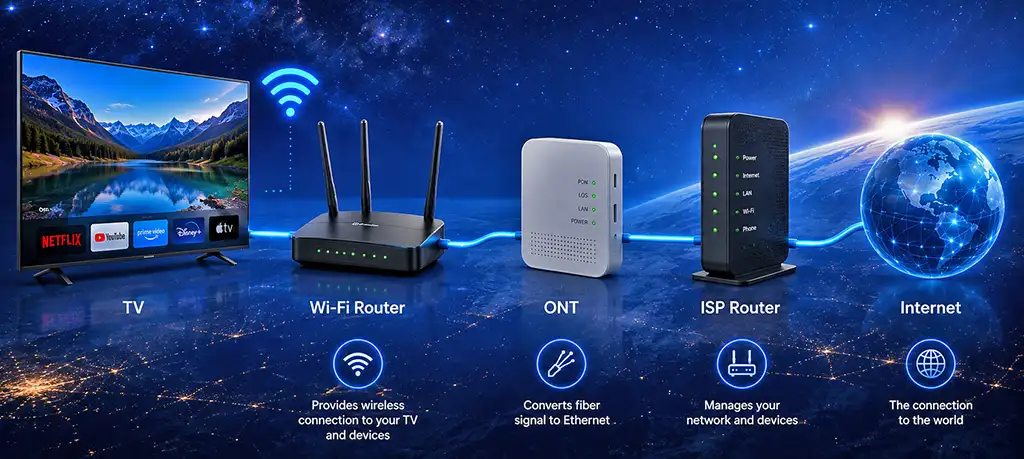
Common Wi-Fi problems
If your computer displays the message “Unable to connect to this network,” it is most likely a connection protocol issue, usually related to the router or the computer. Restart both devices first. As a less likely possibility, check the Wi-Fi password. If necessary, delete the saved network and reconnect.
If your Wi-Fi connection keeps dropping, restart the router and check whether it is overheating. The problem can also occur because of insufficient power. In this case, the router’s power supply may be faulty.
If you see the message “Connect to the device and set up the Internet,” the router has created a Wi-Fi network but has not established an Internet connection. This can happen because of a problem on the ISP’s side. Wait 5–10 minutes and check the connection again.
If you are using a wired Internet connection, make sure the cable between the modem or wall jack and the router’s WAN/Internet port is connected correctly. If you are using a fiber-optic connection, check the indicator lights on the ONT.
Do not immediately reset the router to factory settings. A reset will delete the Wi-Fi name, password, Internet settings, and other user settings. Only reset the router if other troubleshooting methods have not helped.
There is also another detail to keep in mind: some service messages are not transmitted over the Wi-Fi network. For example, if the connection ports on your provider’s router are changed, you will need to log in to your account again and update the association of your connection with a specific router port.
You can do this over Wi-Fi, but the message may be blocked by the router’s firewall. If possible, connect directly to the network, bypassing the router. If this is not possible, contact your provider. They will check your connection and provide further recommendations.
Table of common Wi-Fi problems and solutions
| Problem | Possible cause | Solution |
|---|---|---|
| “Unable to connect to this network” | Connection protocol issue, usually related to the router or computer. | Restart the router and computer. Check the Wi-Fi password and, if necessary, delete the saved network and reconnect. |
| Wi-Fi connection keeps dropping | Router overheating or insufficient power. The power supply may be faulty. | Restart the router, check whether it is overheating, and check the power supply. |
| “Connect to the device and set up the Internet” | The router has created a Wi-Fi network but has not established an Internet connection. | Wait 5–10 minutes and check the connection again. The problem may be on the ISP’s side. |
| No Internet with a wired connection | The cable may be incorrectly connected between the modem or wall jack and the router’s WAN/Internet port. | Check that the cable is connected correctly and securely. |
| Fiber-optic Internet is not working | The optical connection may be unavailable. | Check the indicator lights on the ONT. If they show an error, contact your ISP. |
| Service message does not appear over Wi-Fi | The router’s firewall may block the service message. | If possible, connect directly to the network, bypassing the router. Otherwise, contact your ISP. |
| Connection port on the provider’s router has changed | Your connection may still be associated with the previous router port. | Log in to your account and update the association with the new router port. If this is not possible, contact your ISP. |
| Router settings are suspected to be incorrect | Incorrect configuration or another router-related problem. | Try other troubleshooting methods first. Reset the router to factory settings only as a last resort, because this deletes the Wi-Fi name, password, Internet settings, and other user settings. |