


Closed captions (CC) can improve your viewing experience, especially when watching movies or TV shows in a foreign language, and they’re essential for people with hearing impairments. However, captions can sometimes be distracting by covering part of the screen. In those situations, it makes sense to turn them off, but the way you do it depends on where the video is coming from.
If you’re using cable TV or over-the-air channels, you can turn off subtitles directly in your TV’s settings menu. If you’re using an external streaming device, such as a Roku, Google Chromecast, or Amazon Fire TV Stick, you’ll need to change the settings on the device itself, since the TV simply displays the signal it receives through HDMI and doesn’t control those settings. If you’re watching through built-in apps like Netflix, Amazon Prime Video, or Hulu, subtitle settings are managed within the apps themselves.
Controlling subtitles via the menu on a Samsung TV.
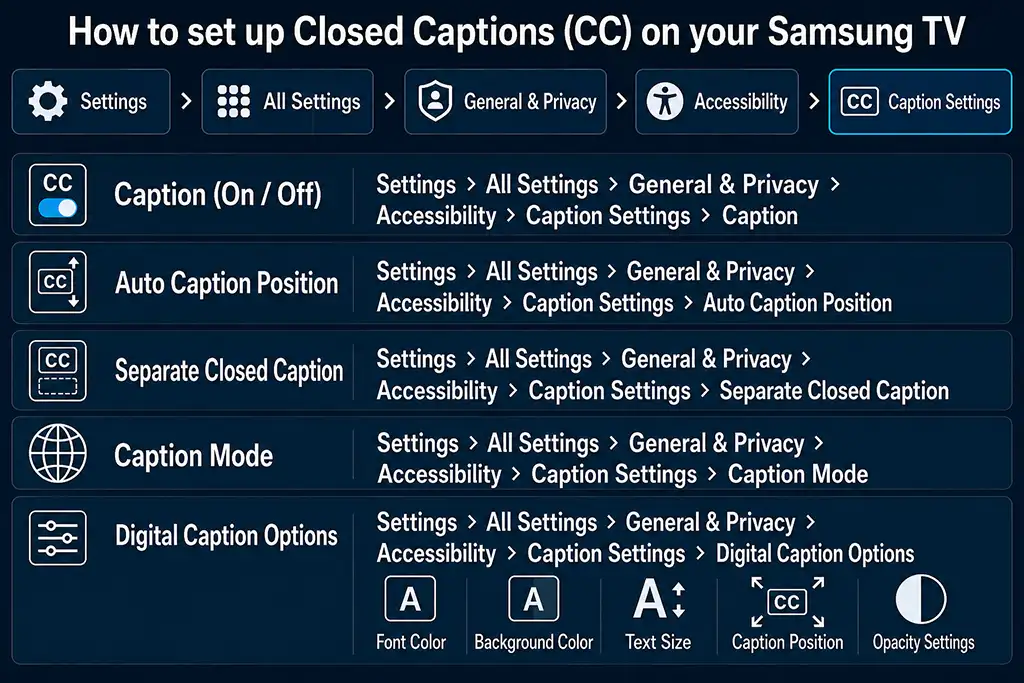
To turn on captions, open: Settings → All Settings → General & Privacy → Accessibility → Caption Settings
Set Caption to On to display subtitles while watching supported programs. Captions will only appear for content that includes caption support.
Adjusting the caption position
Settings → All Settings → General & Privacy → Accessibility → Caption Settings → Auto Caption Position
This feature automatically adjusts the position of captions on the screen for supported broadcasts. Availability may vary depending on the TV model and the type of broadcast signal.
Separating captions from the picture
Settings → All Settings → General & Privacy → Accessibility → Caption Settings → Separate Closed Caption
When supported, the TV can display captions in a separate area instead of placing them directly over the video. This feature works only with Digital Closed Caption broadcasts.
Choosing a caption language or mode
Settings → All Settings → General & Privacy → Accessibility → Caption Settings → Caption Mode
Customizing digital captions
Settings → All Settings → General & Privacy → Accessibility → Caption Settings → Digital Caption Options
You can customize several caption settings, including: Font color, Background color, Text size, Caption position, Opacity settings
The text and background colors cannot use the same opacity settings, otherwise captions may become difficult to read. Caption position adjustments are only available for broadcasts that support digital captions.
Subtitles on Samsung TV apps
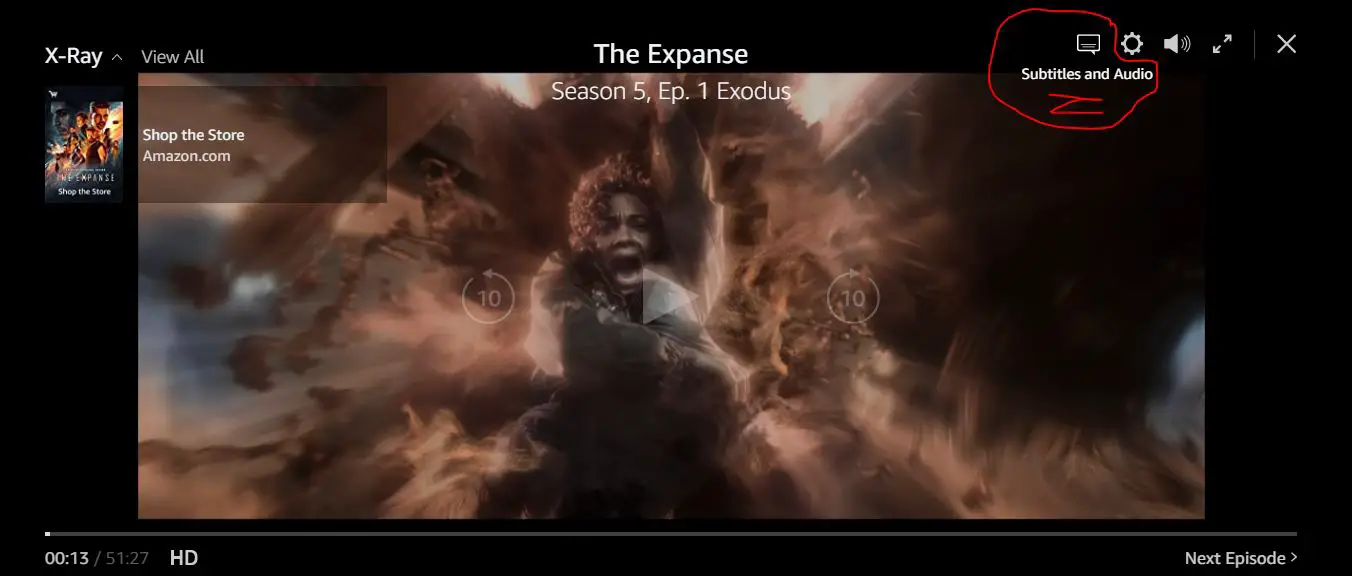
When watching content through a streaming service, you can usually turn off subtitles directly within the app. For example, in Amazon Prime Video, start playing the video you’ve selected, then tap the subtitles and audio settings icon to open the playback control panel. Next, select the speech bubble icon or the Subtitle/Audio button to open the subtitle settings. From there, simply uncheck the option to disable subtitles. This process is quite similar for other streaming apps like Netflix, Hulu, Disney+, and more—just look for the Subtitles or Closed Captions option and toggle it off.


Only
Menu → Settings → All Settings → General & Privacy → Accessibility → Caption Settings → Caption
I can’t shut off the subtitles of an MP4 movie we want to watch from a flash drive. The caption setting is OFF. Our other Samsung TV has an option through the “TOOLS” button that works great. This newer Samsung’s remote does not have the tools function. Trying to stop the subtitles through the “accessibility” menu merely frustrates us. Is there some real help?
How do you get video, via cable TV or HDMI input.
I’ve tried the apps and the tv itself. CC still will not turn off.
Yes information about the TV on the main board. You will get a new serial number for the TV. You can look for a similar TV with a broken screen or a new board. It costs about $100-$150.
replaycing the main board I can “relive” my tv?
Try turning on the TV without the Internet. Disconnect the Wifi router or unplug the Internet cable. If this does not help, there is information in the TV’s permanent memory. You can try doing a factory reset in the service menu without connecting the internet. If this does not help, you need to buy and replace the main board of the TV.
Danm god! I buy it from a guy on site like ebay in Brazill, the guy change phone number and I cant talk with him anymore.
Is impossible watch nothing, when tv start this screen I send a print appears and nothing more happens, keys dont work, only power on/off. I can trying disable smart (internet) on service menu or something like this to can use this tv offline anyway or with chromecast.
May be some change in service menu?
This is a blocking from Samsung of illegal devices. Most likely the serial number of the TV, does not match your model of TV, or such serial number does not exist, it can also be a variant of this batch of TVs was stolen from Samsung. When you connect to the Internet, the TV connects to Samsung servers, the serial number of the TV is blacklisted, you get blocked. Option not to use Smart (Internet)
when I connect to the internet on tv, then restart and get this screen blocking
when I connect to the internet on tv, then restart and get this screen blocking
How long have you been using the TV?
When the error message appears.
Brazil I Am
This is the TV model for Brazil.
001 is usually a Smart geolocation error.
When you get this error on the TV. What country you are in.
hello, I have a problem with my tv UN75RU7100GXZD
I can access the service menu but already try reset and not work
you already see this error?
DT001
Here as print
https://prnt.sc/13g6et3