
Windows 11 is an operating system packed with many features, which also means it has a variety of settings for sound output customization. For example, you can choose to output video from your laptop to a TV while keeping the audio on your laptop’s speakers, or you can send the audio to Bluetooth headphones that are connected to your laptop. However, sometimes there may be issues with sound when connecting devices via HDMI.
How to fix HDMI audio problems in Windows 11
HDMI sound problems in Windows 11 can occur either due to software glitches or incorrect settings.
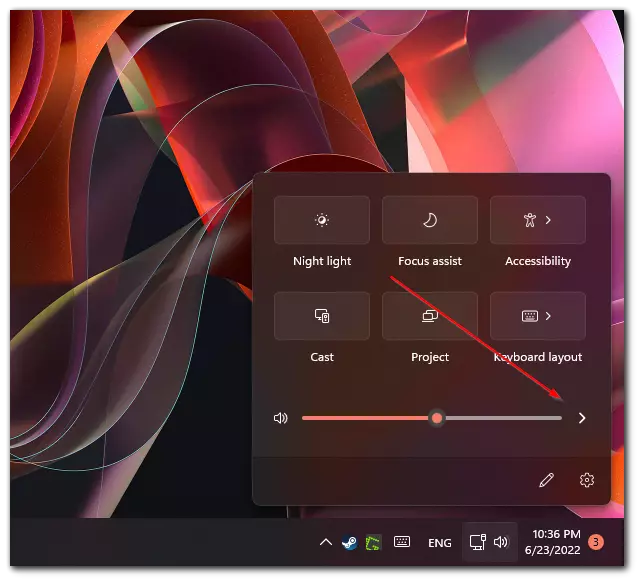
The easiest thing to do is to check if the sound is enabled. Click on the speaker icon in the bottom right corner of the screen. Move the volume slider to the right to increase the sound if necessary.
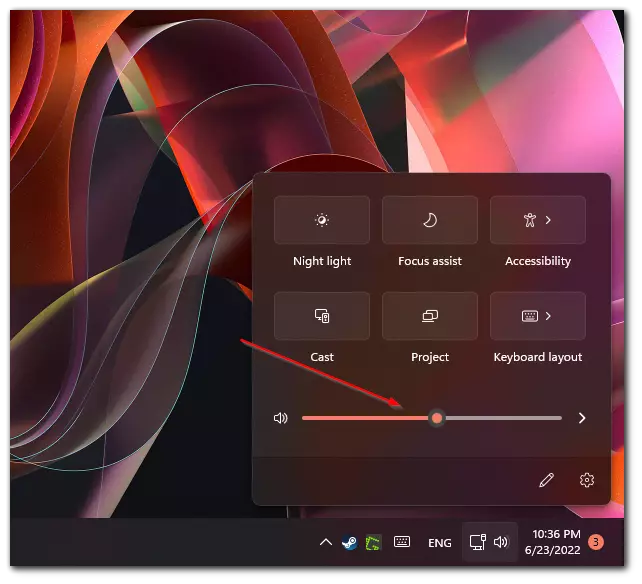
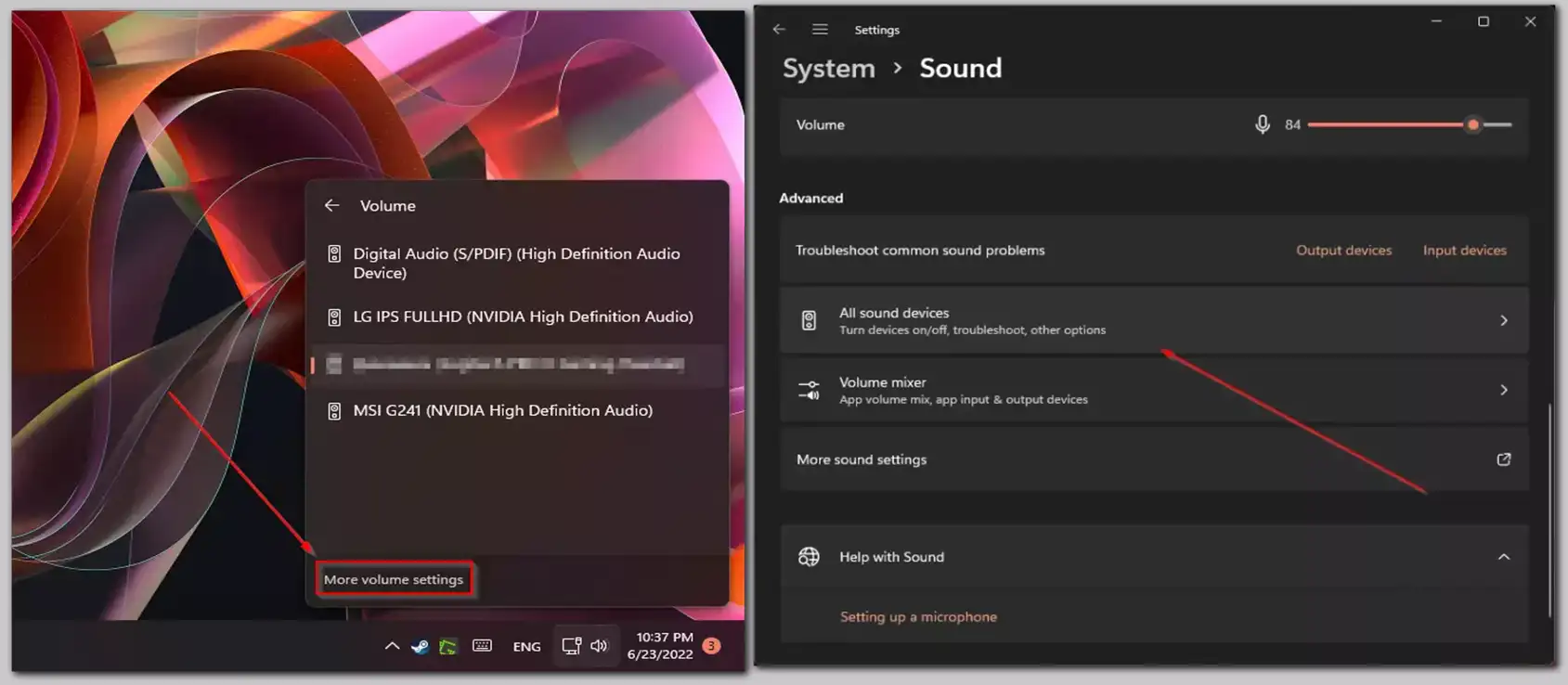
Select the desired output device.
If the sound still does not work, your system may be using the wrong audio output device. To set the correct device, follow the steps below:
Click the speaker icon in the lower right corner.
Click the right arrow next to the volume control to open the device selection menu.
Select the appropriate HDMI device from the list.
Allow Windows to access the device
Sometimes Windows may block access to the HDMI audio device. To allow it, follow the steps below:
Open the device selection menu by following the steps above.
Click on Advanced Volume Settings to go to advanced settings.
Scroll down to All Audio Devices and locate the HDMI device in the list.
Click the device, and then click on the Audio tab.
Click the “Allow” button to grant Windows access.
Once allowed, your device should appear in the list of available audio outputs. Simply select it and the audio will work.
How to Fix Hardware Issues with HDMI in Windows 11
If software troubleshooting didn’t resolve the issue, it’s important to check the hardware. A faulty cable, port, or device may be the cause of the problem.
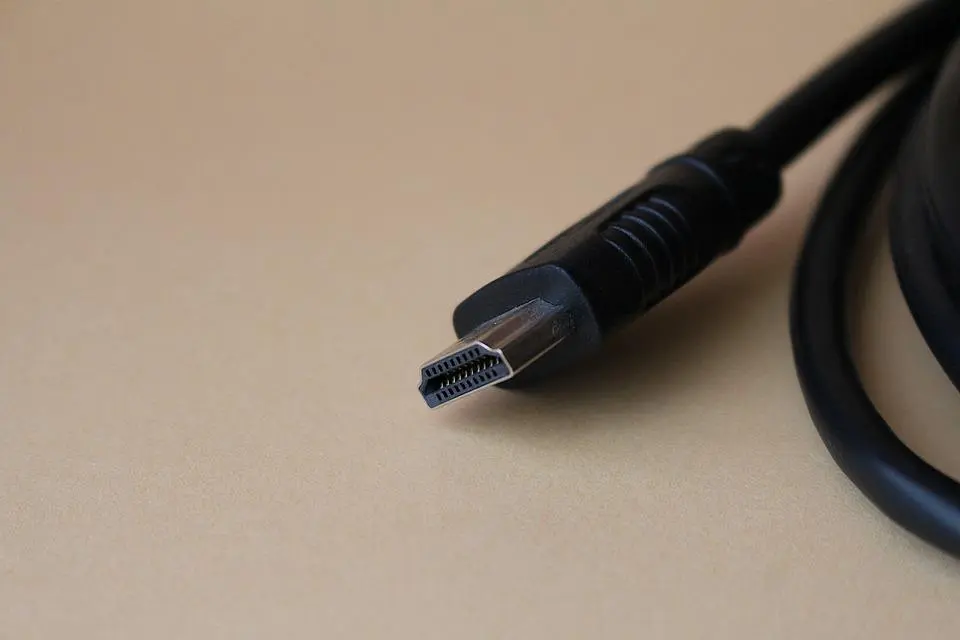
Start by inspecting the HDMI cable for any visible damage. Remove it from the port and reconnect it, making sure it fits securely. If possible, try using a different HDMI cable. If the issue persists with another cable, the problem is likely elsewhere.
Next, check the functionality of the audio device. If you’re using a TV, test its speakers with other functions to see if they work. Try connecting another device via HDMI to determine if the issue is with the TV or the original source. Increasing the TV’s volume can also help rule out any sound muting.