

If the Amazon Prime Video app does not work on your Samsung Smart TV, this is a fairly common problem. It usually manifests itself in the Prime Video app either not opening or not loading properly. When you launch it, the Prime Video icon may appear, but then a black screen appears, or the TV may freeze while the app repeatedly tries to load without success.
This problem can occur unexpectedly, even if the app was previously working without any issues. In most cases, the problem is caused by the TV itself, not the app.
Fortunately, this problem is usually easy to fix. In about 95% of cases, the app can be restored in just a few minutes. Below are the most common causes of this problem and the easiest ways to fix Prime Video on your Samsung TV.
Reasons for Amazon Prime Video crashes on Samsung TVs
The most common reasons why Prime Video stops working are a lack of memory to run the app and cache errors in the TV’s memory.
Smart TVs typically have relatively little RAM and internal storage. Over time, as more apps are installed, the available memory fills up with cached data created by these apps.
The Prime Video app also stores a significant amount of temporary data. For example, the app remembers which movies or TV shows you’ve already watched, where you left off when watching a video, and other interaction data. This information allows you to continue watching content from where you left off.
All of this information is stored in the TV’s cache memory. If the cache becomes too large or outdated data is written to it, the app may stop functioning properly.
How to fix Amazon Prime Video on a Samsung TV
It’s best to start with the simplest solution and move on to more complex steps only if necessary.
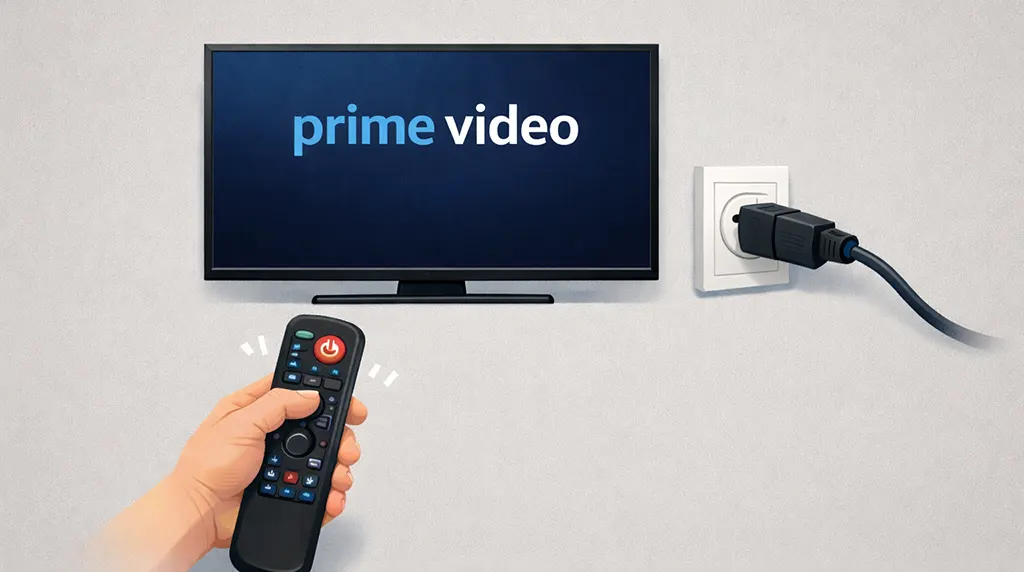
The first thing to try is clearing the TV’s cache. Clearing the cache solves the problem in about nine out of ten cases. To clear the TV’s cache, when turning on the TV, continue to hold the power button on the remote control for about 20 seconds. This will force the TV to restart and clear the cache. On some models, the power indicator may flash during this process. Once the indicator stops flashing and the TV restarts, check if the Prime Video app is working.
You can also disconnect the TV from the power source for a few minutes. This will also clear the memory.
Clearing Permanent Memory on a Samsung TV
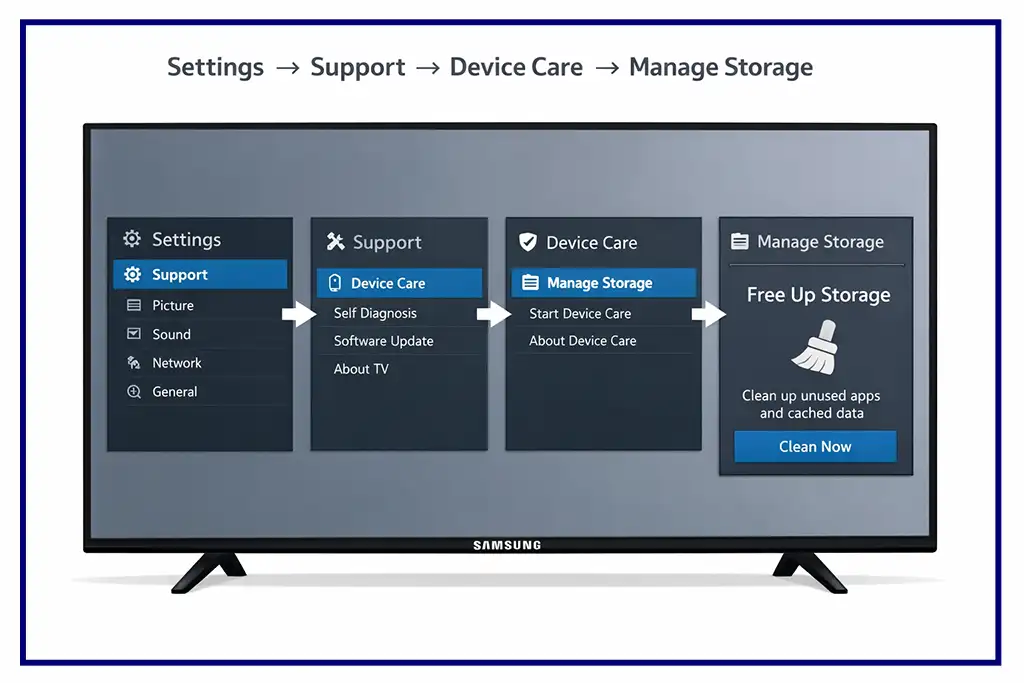
To check how much memory is being used, open Apps on your TV and go to Settings (the gear icon in the upper-right corner). This section usually shows how much memory is occupied by applications. On some models, memory information is also available in Settings → Support → Device Care → Manage Storage, where the TV displays how much memory is used and how much is available.
Memory shortages on Samsung TVs are relatively rare. In models produced before 2020, the system periodically removes unnecessary data automatically, but this feature was not always well optimized in older TVs. The built-in browser is often the main source of stored data because it saves information about visited pages in the TV’s permanent memory.
The permanent memory in a TV is mainly used by the operating system to install applications and store data in the cache for long periods of time. The applications themselves usually take up little space, as they are simplified versions of a browser designed to work with a single streaming platform. However, if you use the built-in browser frequently, the memory can quickly fill up with stored information about the pages you have visited. TVs typically have limited memory, ranging from about 4 GB in basic models to about 32 GB in premium models, and the memory can fill up.
Clearing the browser history can free a significant amount of memory, especially if the browser is used often. To do this, open the TV browser and go to its settings. Depending on the browser version, the settings icon may appear as a gear icon, three dots, or three horizontal lines in the upper corner of the screen. In the settings menu, find the section related to browsing history or visited pages and select the option to delete history or clear browsing data. After clearing the stored information, check whether Prime Video works properly.
Deleting unused applications can also help free up memory. However, filling the TV’s storage with apps is unlikely, as it would require installing dozens of them. Still, removing apps you no longer use can help keep the system running smoothly. Some streaming services also store viewing history and other data within the app itself. If you frequently use services such as Netflix or similar platforms, you can clear this information through the app’s settings by selecting the option to delete viewing history or clear saved data.
Reinstalling the Prime Video App
If the problem continues after clearing memory and removing unnecessary apps, the issue may be related to the Prime Video application itself. This situation is quite rare and is usually caused by corrupted app data in the TV’s memory.
In this case, open the Smart TV menu, delete the Prime Video app, and then reinstall it from the app store. However, even after reinstalling, the app may still not work properly if the underlying problem is related to the TV’s memory or system damage.
Problems with the Internet and Prime Video
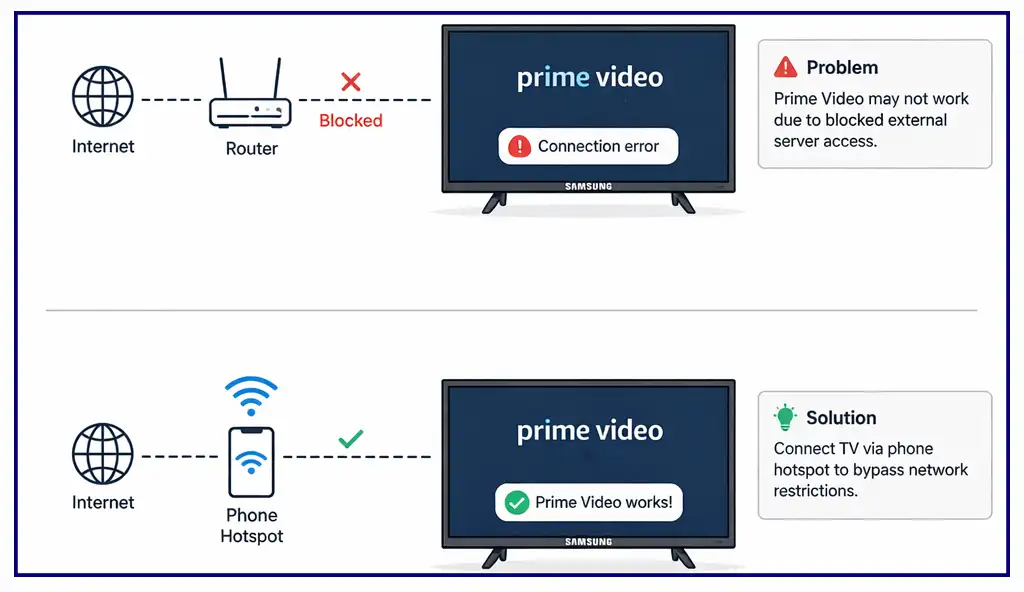
Sometimes the issue is not with the Prime Video app itself but with the Internet connection. Although the app streams content directly, it also communicates with Samsung servers to exchange certain data. If access to external servers is restricted or blocked by your network settings, Prime Video may not work properly.
To check whether the network is causing the problem, try connecting your TV to the Internet using a different connection. For example, enable a hotspot on your phone and connect the TV to it instead of using your home router. Then launch Prime Video again.
If the application works with the alternative connection, it likely means that the issue is related to your home network settings.
Amazon Prime Video error codes
When watching Amazon Prime Video, you may occasionally encounter error messages. Each error is accompanied by a specific code that can help identify the source of the problem. Understanding these codes can make troubleshooting much easier.
Here’s what the main error code ranges typically mean:
1*** — Issues related to your internet connection or network stability.
2*** — Issues with account activation.
5*** — Errors related to your Amazon account.
7*** — Issues related to your device or software.
9*** — Compatibility issues with third-party devices used for streaming.
If the app displays an error code on the screen, you can quickly determine the likely cause of the problem and take appropriate action to resolve it.



This work to treat thank you very much for the tip
I have cleared the TV cache, and now I can use Prime Video on my TV again. Thank you so much for this article.
Thanks I have been trying to watch for days!!! Thank you for this tip!!
It worked I was so frustrated thanks!
Thank you worked perfectly!!!
Wow, this definitely work. I called Amazon customer services and they could not help me. Thanks for the tip
Thanks !! Worked perfectl
Great tip, worked exactly as you said and prime now working again.
Clearing the cache worked.
Thanks
Thanks for the tip. Clearing the cache worked. I can now get into Amazon prime.