
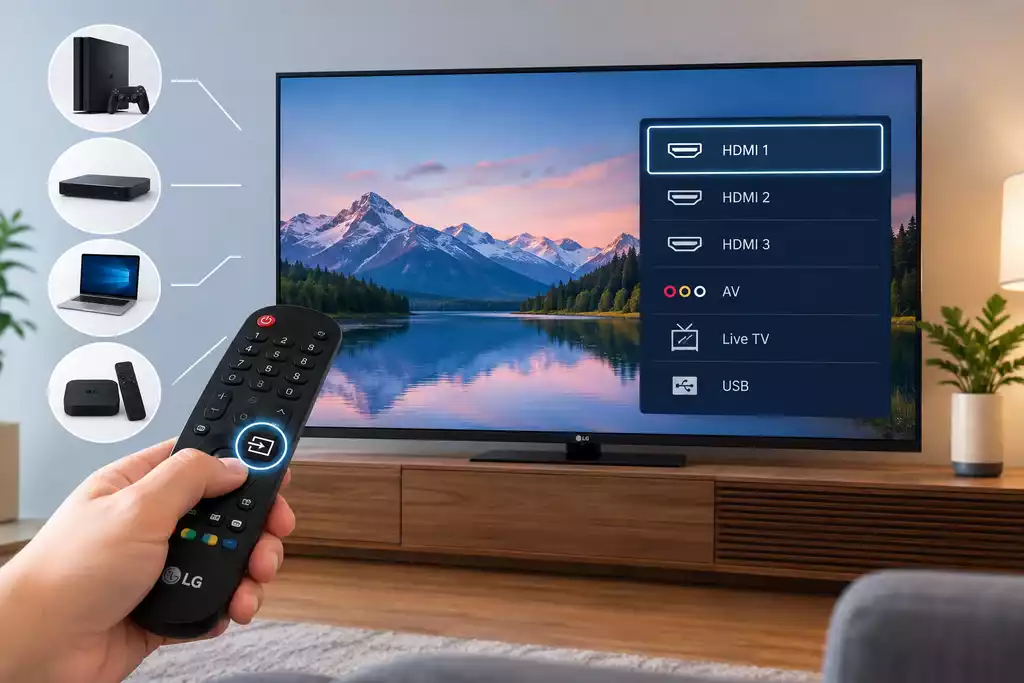
Changing the input source on an LG Smart TV is necessary when you want to switch between devices connected to the TV, such as a game console, Blu-ray player, cable box, or computer. You can change the source using the LG remote control, but there are also ways to do it if you do not have the remote.
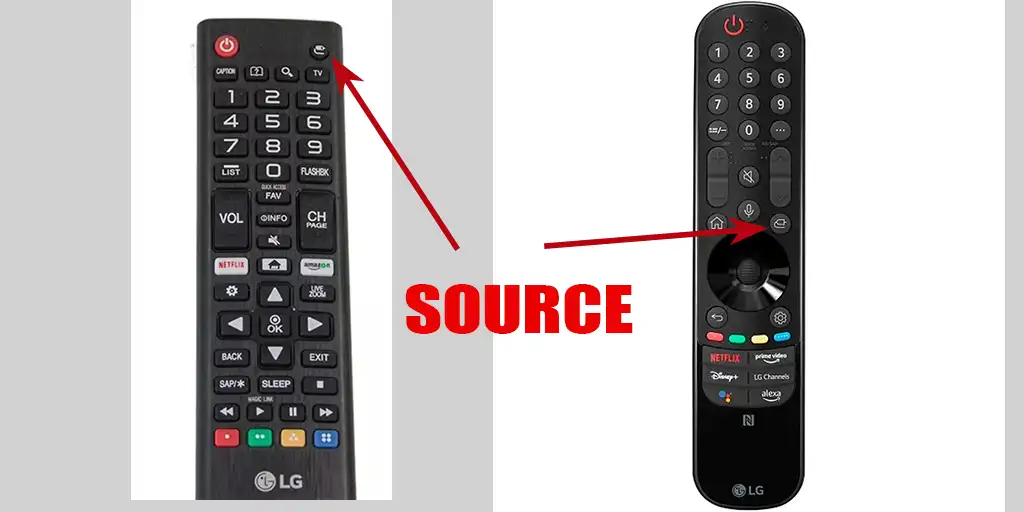
How to Change the Input Source on an LG TV Without a Remote Control
Even if you don’t have a remote control, you can change the input source on most LG TVs. The method depends on your TV model. You can use a physical button on the TV, the LG ThinQ app, or—on some models—a USB mouse or keyboard.
The easiest way to change the input source without a remote is to use a physical button on the TV. Depending on the model, the button may be located under the LG logo, on the bottom edge, or on the back of the TV. Many LG TVs are equipped with a single multifunction button that acts as a joystick.
Turn on the TV using this button. Once the TV is on, press the button to open the control menu. If the button functions as a joystick, move it to navigate through the available options and press it to confirm your selection.
Find the “Input,” “Input Source,” or “External Inputs” option. Select it, then choose HDMI, antenna, AV, or another input you want to use.
On some LG models, pressing a physical button does not open the TV’s full menu; instead, you’ll see a mini-menu offering only basic functions, such as selecting a signal source or turning the TV on and off. Using the physical buttons is intended only in rare cases and is usually a temporary measure until the remote control is replaced. You can also access the full menu using virtual remote apps on your smartphone.
Changing the Input Source Using LG ThinQ
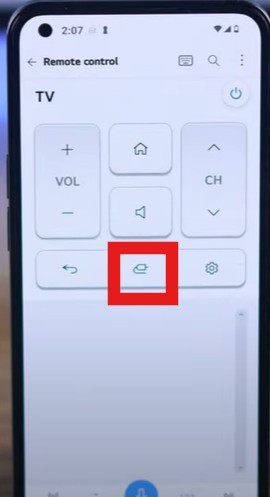
You can use your smartphone as a remote control via the official LG ThinQ app. This is convenient if you don’t have a remote; other remote control apps are also available. In this case, control is carried out via your home internet network. Keep in mind that your smartphone and TV must be connected to your home network—that is, to your home Wi-Fi.
Install the LG ThinQ app on your smartphone and log in. Then add your LG TV as a device. During setup, a PIN code may appear on the TV screen; you’ll need to enter it in the app.
Once the TV is connected to ThinQ, open the virtual remote control. Use the input or source controls to select the desired HDMI input or another source.
Using a USB Mouse and Keyboard
LG TVs released after 2018 generally support HID-compatible devices; in other words, they support universal drivers for USB mice or keyboards. You can connect a mouse to a USB port or a keyboard to the TV and use the mouse pointer to navigate the on-screen menus, or use the “Enter” button and arrow keys on the remote control to select a signal source.
A physical button is the simplest option, as it requires neither a smartphone, an Internet connection, nor any additional devices. However, the functions available via this button vary depending on the LG TV model.