

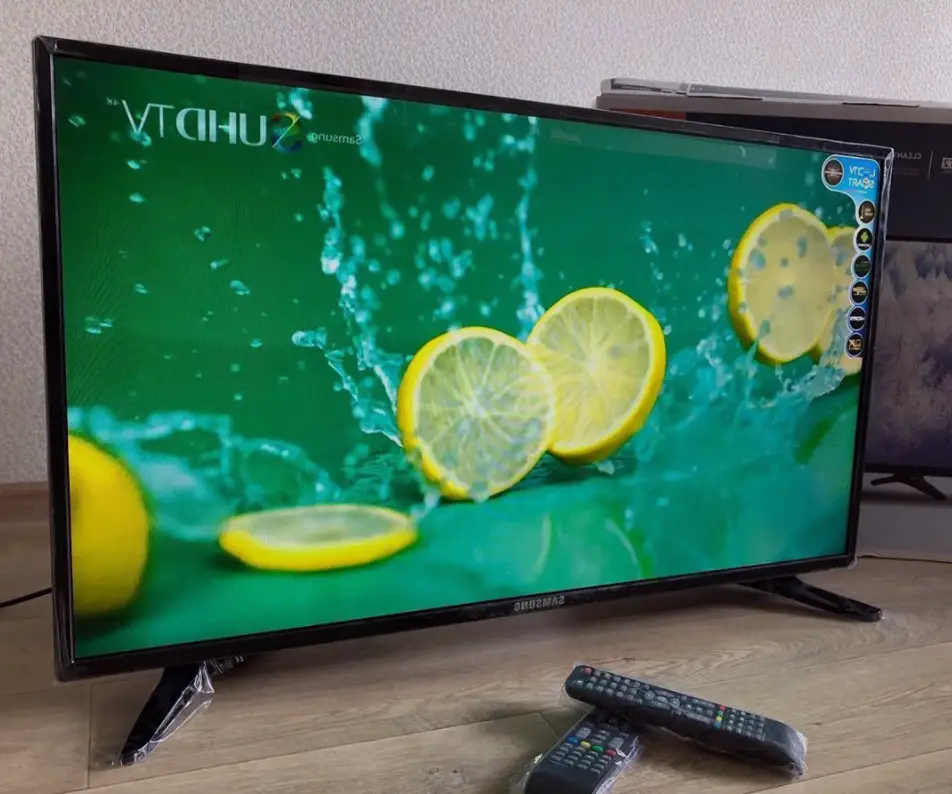
Samsung smart tv secret menu bluetooth
That’s not a secret that Samsung Smart TVs have not only a service menu but also a hidden one, made mainly for service centers. Some people call this menu a Samsung TV secret or hidden menu and it offers much broader functions than the common one. A lot of people are interested in getting access to the Samsung TV secret service menu, as it gives additional functions to set up your TV. One of them is turning on Bluetooth in your Samsung Smart TV.
Let’s first answer the question: Why do you need Bluetooth in your Samsung TV at all? Firstly, Bluetooth can be used to connect headphones and other audio devices. Secondly, Bluetooth can be used to connect a Smart remote to your Samsung TV and, therefore, make it more convenient to use. By the way, we don’t recommend using Bluetooth devices instead of wired ones, as there may be some lags with your Bluetooth audio, including sync lags when the lips on the screen are unsynced with the audio flaw. But you can still use a secret menu to activate Bluetooth and connect One Remote to your TV and it really worths a shot.
Does My Samsung TV Support Smart Remote?
According to Samsung, all TVs that don’t have a Smart remote attached ‘in the box’ don’t support One Remote, which means that even if you buy one separately, it wouldn’t work with your Samsung TV. Actually, that’s not entirely true. Depending on the country the TV is made for, the same model may either support or doesn’t support the Smart remote.
It sounds a little bit weird, but that’s how it works. We will explain why the company is acting so in a little more detail. Samsung uses Smart remote control support as one of the marketing tricks to divide TVs into classes and, accordingly, for their correct price positioning. That’s why for some TV models Samsung turns off access to using Bluetooth on a software level. The good news is that you can still use the smart remote in this case, you just need to get the Bluetooth turned on using the secret menu.
In case you aren’t sure if your TV supports the smart remote you can check it yourself. If there is Bluetooth in your TV’s tech spec, then the Smart remote control is disabled at the software lever. In order to use Samsung smart remote, you will need to enable it in the secret menu (see below for details).
Also, you can check if your TV supports Bluetooth on the hidden menu first screen.

How To Enable Smart Remote Support in Samsung TV Secret Menu
Note: Depending on the specific TV model, the secret menu appearance may differs.
As mentioned above, for TVs that have Bluetooth, you can enable smart remote support manually using the secret menu. In order to turn on One Remote support, you need to do the following:
- Enter the secret (hidden) menu. You can read how to do enter the secret menu in our article. Note, that depending on your TV model, the service menu may differ. Currently, there are six different algorithms for entering the service menu for different TV models.
- Next, go to Option → Engineer Option → BT_Audio_ON_OFF and select ON. This setting enables audio transmission via Bluetooth;
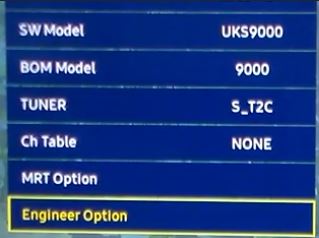
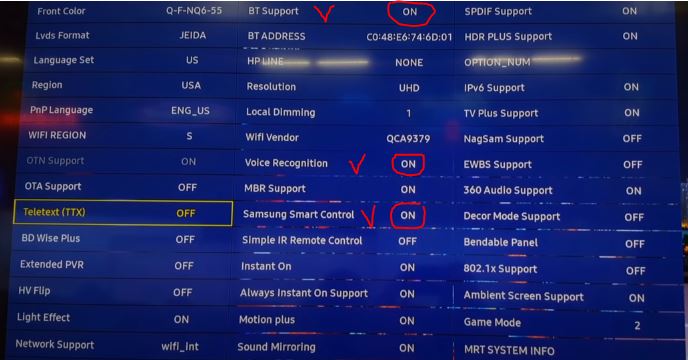
- The next step is as follows: Option → MRT Option → BT Support ON → Voice Recognition ON → Samsung Smart Control ON;
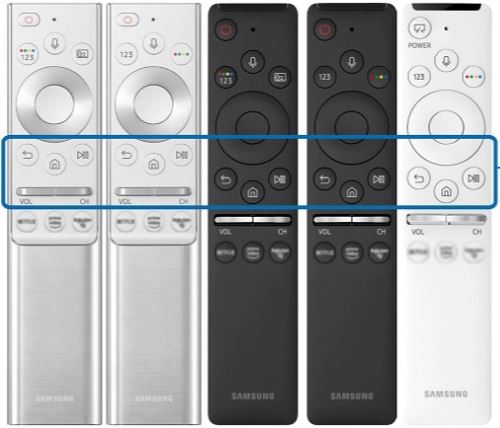
- Then you would get access to the Bluetooth settings, so you can pair your smart remote with the TV. Usually, it’s automated, but if they don’t get paired, then you need to press the RETURN and PLAY/STOP buttons on your control simultaneously (as shown in the picture below).
If your TV doesn’t have a Bluetooth module, you won’t be able to connect to the Smart remote. This means that your TV is of the low-end segment, series 8 or below (for more information on TV model numbers and series, read this article).
Please note! The secret service menu is designed for service masters, so if you change any important settings such as screen type or display resolution, or any other important settings, you can simply break your TV.
Let’s briefly explain why things can go such a way. You need to understand that all changed settings are recorded to the non-volatile memory chip, so when you’re turning your TV on, all apps and settings are loaded from there. In case you’ve recorded incorrect info, the TV wouldn’t be able to start. If this happens, the only way to fix the TV is to reprogram it with the correct settings. To do this, you would need to unsolder the chip, write the correct settings with the programmer, and then resolder it on the board. In case you’ve faced such an issue, the best way to solve it is to contact the service center.
To prevent such failure, we strongly recommend you to take a picture of the Samsung TV secret menu factory settings with your phone. That way, you would always know what EXACTLY you’ve changed, so you would be able to restore the initial settings yourself. Also, If you decide to leave the page or turn off the TV, we recommend re-check the settings to make sure you haven’t made any accidental changes.
So, as you can see, accessing the Samsung TV’s secret menu can be useful in some cases, for example for activating Bluetooth. But you must be extremely careful not to make a mistake and break your TV. In case you don’t know what a certain setting does, it’s always better not to change it at all, this will significantly reduce the chances of doing something wrong.
Also, if you have questions – don’t hesitate to ask me in a discussion below, I’m always trying to answer questions ASAP. And if you were looking for any other features of the Samsung TV secret menu – write about them as well, I would answer and, maybe, would write another article covering them.



Merci de votre réponse. Par contre, si quelqu’un connait cette TV UE43TU7025, je suis retourné voir en faisant très attention : Ok sur Engineer Option, puis Ok sur Config-AV-PATH, on voit :
MAIN : Option, MODE : DTV, RES : 1080I
V-HDMI IDENT TYPE et 4 chiffres de 1 à 4 qui peuvent être dans l’ordre : 1234 ou 1243 ou 1324 ou 1342 ou 1423 ou 1432 ou 2134 ou 2143 ou 2314 ou 2341 ou 2413 ou 2431 ou 3124
Et surtout il faut faire RETURN au lieu des flèches pour retourner sans toucher. Si quelqu’un est passé par ici pour chercher BT Audio comme moi ou Si quelqu’un s’y connait en HDMI Merci de me renseigner ou Si quelqu’un sait où trouver ces infos.
UE43TU7025 modèle 2020 Pas de module bluetooth sur ce téléviseur
Bonjour, je viens d’acheter le 11/11 un TV SAMSUNG UE43TU7025 de 2022 qui n’a pas de prise casque et donc j’ai cherché sur Internet pour un casque BLUETOOTH et j’ai trouvé cette histoire de fichier caché.
Pour moi c’est : INFO – SETTINGS – MUTE – POWER
En plus, pourquoi ne pas mettre le Bluetooth et une prise Jack automatiquement C’est nul.
Par contre je n’ai pas trouvé BT Audio en allant sur Engineer Option mais j’ai été sur Config_av_path puis sur V_HDMI_IDENT_Type ????
Puis j’ai dit STOP et au lieu de faire Return j’ai fait Flèche Gauche 1 ou 2 fois puis Flèche Droite plusieurs fois . Le chiffre marqué actuellement est 3124 mais je ne sais plus ce qu’il y avait au départ. Je suppose que c’est le même chiffre pour les sorties HDMI mais je ne sais pas lequel ? Déjà si quelqu’un a la même TV peut-il regarder ?
Et puis en fin de compte, cette TV a-t-elle un BLUETOOTH ?
Tout ça pour un casque offert par ma fille il y a 3 mois.
Your TV does not have a bluetooth module, but the TV supports USB HID. you can try using a device with a USB bluetooth module
My Samsung Smart tv 5 series t5202 dont have BT address, what should i do? Anyone Please help me..
Thanks,
Any ideas?
Thanks for your response! I’ve tried to reply a couple of times already but haven’t had any luck so far. Hopefully this time it will work..
Unfortunately I cannot find any “BT Audio” setting. So this means bluetooth cannot be disabled for this device?
Or maybe it is hidden in some other menu somewhere? Any tips?
to disable bluetooth, you only need to deactivate BT Audio (off)
“BT DUT”, “BT EU DUT”, “BT Throughput” and “BT Non-Discoverable” is the finer settings and service capabilities of the bluetooth control. These settings depend on the type of bluetooth module and bluetooth version.
Hi,
Similar problem here.. I’m trying to disable bluetooth in a QE32Q50A.
Impossible in the user menu, so I looked in the service menu but I cannot find many bluetooth options in “MRT Option”. There is only “BT ADDRESS”. The “MRT Option” menu is very limited..only 16 items (compared to 42 in the picture above).
There is also “BT DUT”, “BT EU DUT”, “BT Throughput” and “BT Non-Discoverable” elsewhere. That’s all I can find.. I don’t dare to look deeper out of fear of damaging the device.
Any idea IF and HOW I can disable bluetooth?
Also, can I change the item “Factory Entry Number” to 0 or something? I think it is the number of times that I accessed the service menu. I have not changed anything so far!!
Thanks.
Follow up: Decided to try something odd. Went into secret menu – turned BT Audio to “off”. Went back to TV menu – sound – additional settings – Bluetooth, and tried to pair my non-Samsung BT headphones. Surprisingly the TV found my headphones. However, it would not connect with them. I went back to the secret menu and changed BT Audio to “on”, went back to the TV menu, went to speaker list and there was my headphones listed. I clicked on connect, it worked. Crazy.