

You should know that Samsung smart TVs and monitors running the Tizen operating system have a service menu for engineers, which is also called hidden because it is accessed by a special algorithm. Any Samsung Smart TV from 2011 onwards has two menus for controlling the TV:
Standard menu: invoked by pressing the Home button on the remote control and accesses the TV settings.
Engineering (hidden) menu: it is called up by pressing certain buttons on the standard remote control, there is also a special remote control (engineering remote control) for service technicians. In this menu you can control the TV more flexibly, turn on or off certain modules of the TV, run built-in test programs.
How to access the TV’s service menu
To access the hidden menu, you must have a standard remote control for your TV (the picture of a standard remote control is shown below). The standard remote control has more buttons and controls the TV using infrared signals. You have to press a specific combination of buttons to access the service menu, but the Smart remote (One remote) does not have the necessary buttons. With the Smart remote, you can only access the image settings, which are a small part of the engineering menu, and I’ll tell you how to do it, too.
The only way to access the service menu is to use a universal or specialized engineering remote. If you read that you can access the service menu using the power button (control on the TV body) or the virtual remote (on your smartphone), it’s not true: you can’t access the service menu that way.

Warning: Use the service menu with caution. Incorrect use may cause damage to the TV. By entering the service menu, you assume full responsibility for operating the TV at your own risk.
Samsung TV, service menu access codes
Entering the service menu, general rules: You may not be able to enter the service menu the first time. Try several times. The algorithm of pressing the buttons is strictly regulated to prevent accidental entry into the menu. The buttons must be pressed once, and the time between presses is also important. To enter the service menu, the buttons must be pressed once, slowly and briefly. Violation of the pressing algorithm will not start the service menu. If the algorithm of pressing the buttons is correct, after starting the TV, the status LED (if any) will continue to blink, which means that the TV is loading the service menu program. After 1-5 seconds, the service menu will appear on the TV screen. If the power LED remains lit and the service menu does not appear after 5 seconds, it means that something has been done incorrectly and the procedure for entering the service menu must be repeated.
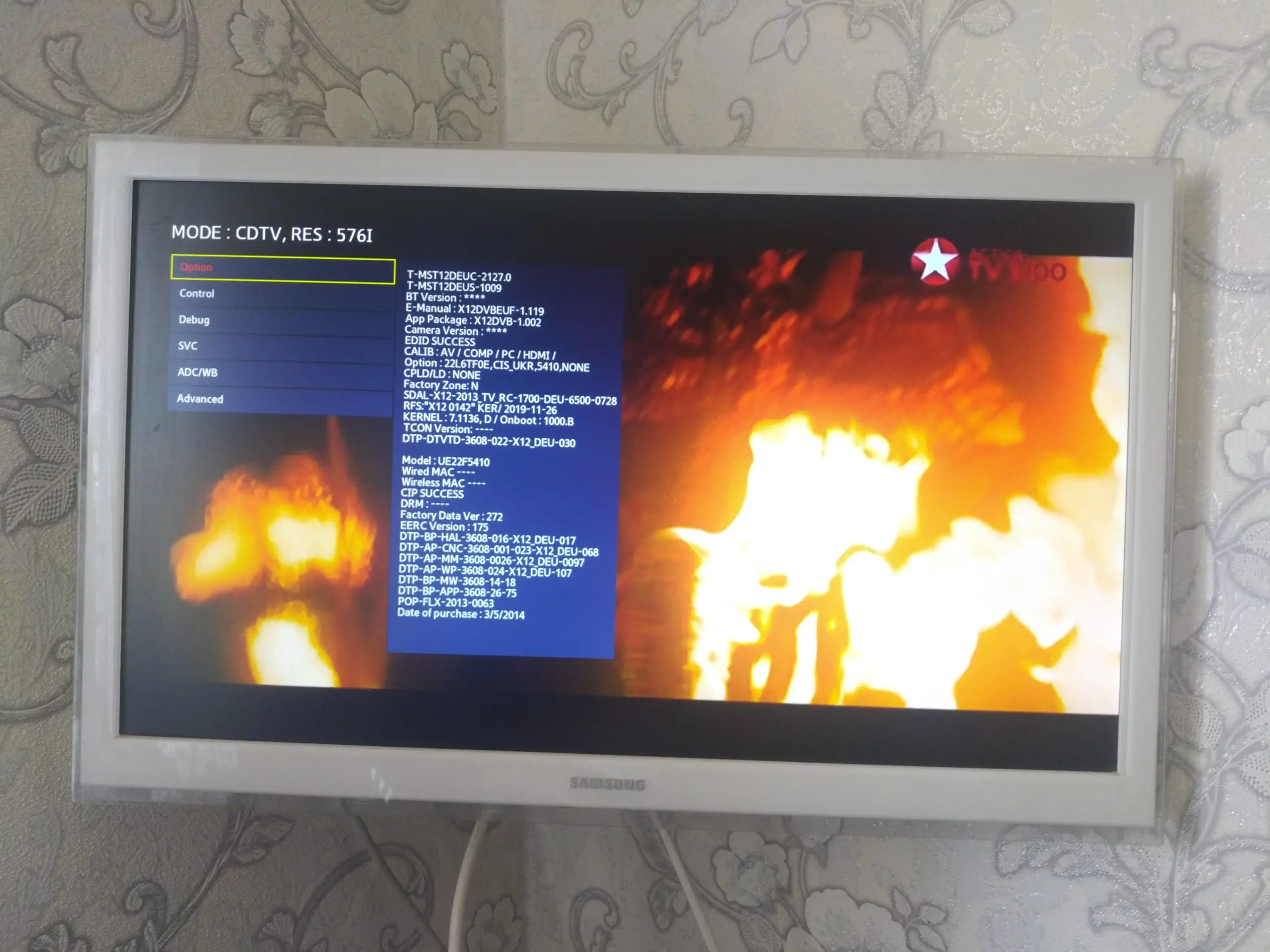
Depending on the manufacturer of the TV motherboard, software modification and region, there are several ways to enter the service menu of Samsung TV. For example, option number one is suitable for TVs manufactured in Europe, and option number two – for TVs manufactured for the United States, Canada and Mexico. All manipulations to enter the engineering menu must be performed with the TV switched off (in standby mode). To exit the service menu (turn off the TV), press the power button.
List of commands to access the Samsung TV hidden menu
A small reminder, the TV must be plugged in and in standby mode. You must have a universal remote control with buttons 0-9. If you don’t have one, buy a remote for TVs from 2011 and newer. Press the buttons one by one in normal mode, making sure to point the remote at the TV.
Each of the possible combinations ends with a press of the power button. Simply put, the first three buttons form the command to call the service menu after the TV is turned on.
There are six ways to access the service menu, so try them all in order.
- Method 1: INFO → MENU → MUTE → POWER – usually works for European models of Samsung TVs and also works with some LED TVs in the US.
- Method 2: MUTE → 1 → 8 → 2 → POWER – suitable for TVs in the USA.
- Method 3: DISPLAY → P.STD → MUTE → POWER.
- Method 4: SLEEP → P.STD → MUTE → POWER.
- Method 5: DISPLAY → MENU → MUTE → POWER.
- Method 6: MUTE → 1 → 1 → 9 → POWER.
When you change the TV settings, the new settings are applied immediately and do not require additional confirmation. Use the cursor keys on the remote control to move between menu items and change settings. To enter a specific menu, press the Enter button. To exit a menu item, press the Return button. To exit the Service Menu, turn off the TV.
Short service menu accessed using the Smart remote control
In the service menu of Samsung TVs, there is a section called “Main Menu”. This menu is accessed using the Smart remote control. You will not have access to the entire engineering menu of the TV, but only the main settings. Changing these settings won’t break the TV, but these settings can’t be reset via a standard TV restart. If you choose to tinker with these settings, you will have access to the following service menu items:
- “Hospitality Mode” – turning this menu on or off allows you to activate other features of this menu, such as the default HDMI input setting.
- “Power On” – controls settings when the TV is turned on, such as showing the last channel or connecting a specific HDMI input.
- “Display Menu” – displays information on the TV screen.
- “Menu OSD” – controls the sound.
- “External Source” – control interaction with external sources.
- “Eco Solution” – saves power.
- “Cloning” – record and transfer settings to another TV.
To enter this menu, turn on the TV, press up → down → ok on the control wheel to open the TV menu.
Service Menu Manual (Quick Guide)
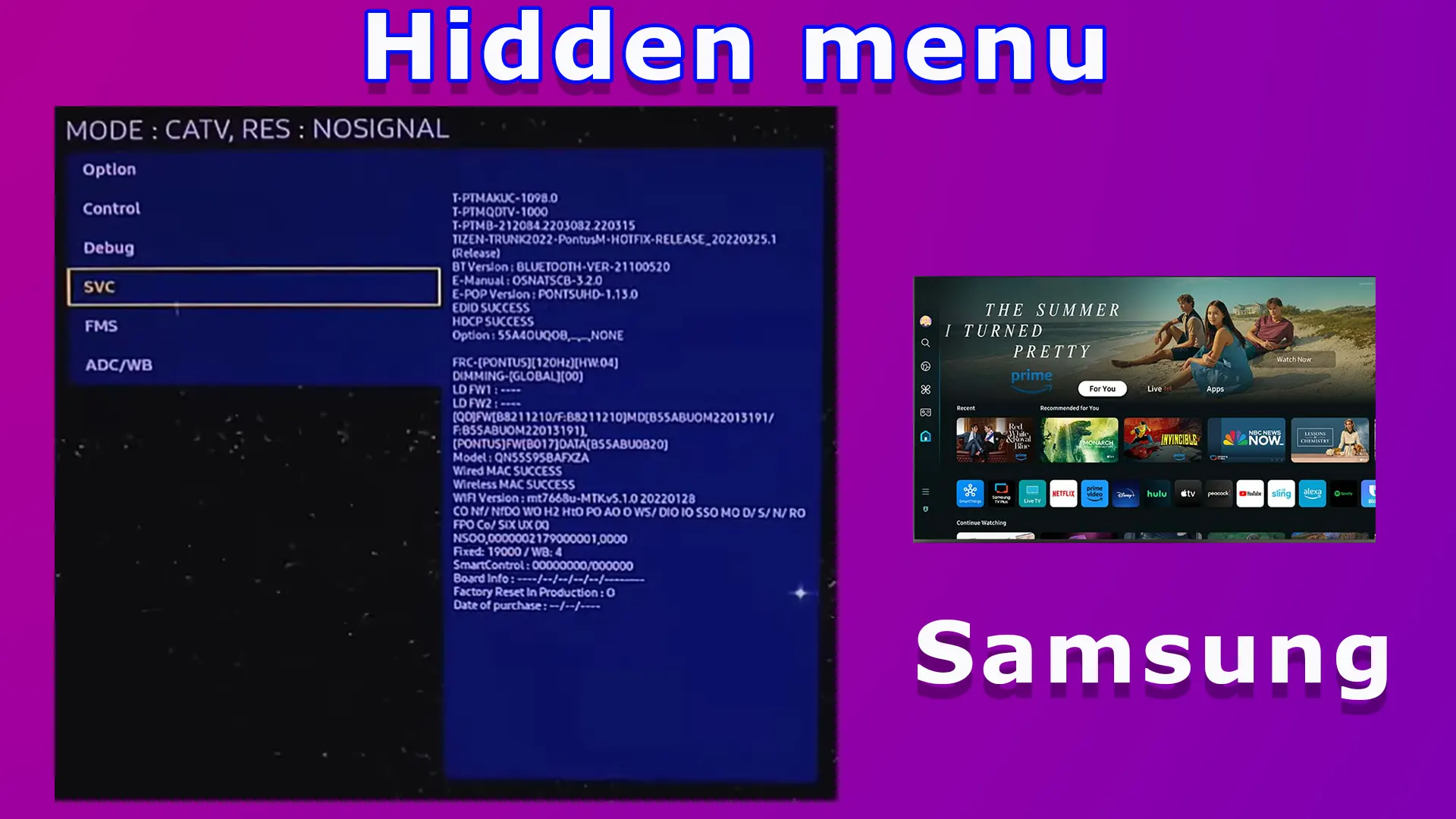
When you enter the Service Menu on the first screen, you will see the main parameters of the TV. On the left is the menu and on the right is basic information about the TV. Let’s look at an example of what information you can get from the first screen.

- T-PIMACUS-1098 are the board numbers inside the TV, the picture shows the secret menu of S95B TV. Samsung OLED TV has three boards (power board, main board and display control board).
- TIZEN- TRUNK2022-PontusM-HOTFIX-RELEASE_20220325.1: this is the operating system version, it is Tizen 6.5, OS working name TRUNK2022-PontusM-HOTFIX, this OS version was released on 03/25/2022 current modification 1.
- BT version: this is the Bluetooth version, if the version is listed, then the TV has a Bluetooth module.
- E – Manual: OSNATSCB-3.2.0 is the version of the electronic manual in the TV.
- E-POP version: This is the version of the in-store demo program used to promote the TV.
- EDID (Extended Display Identification Data): Automatic transfer of display information is used when you connect the TV as a monitor.
- HDCP: whether the encoding of the signal transmitted via HDMI works.
- Option 55a4ouqob: The part number of the TV.
- FRC: 120Hz display frequency.
- DIMMING: What kind of dimming system is used.
- Then there is information about components, WiFI module number, Mac addresses, and so on. But probably the most interesting information is the model number of the TV.
- Model: QN55S95BAFXZA
- Factory reset in production: Number of resets through the service menu.
- Date of purchase: The information was obtained when you connected the TV to Samsung servers after checking the model and serial number of the TV against databases. You may have logged into your Samsung account from the TV or registered the TV on the Samsung website. The date when the TV was registered, or you logged in to your Samsung account from the TV appears in this field. If you have not done so, then there will be dashes.
If you have an LED or QLED TV, the start menu will have information about the display model, as your TV may have displays from different manufacturers. In case you didn’t know, Samsung doesn’t make QLED or LED displays as of 2021. If you poke around in the menu, you can find a lot more; here’s a short list of available information about the TV from the service menu.
- Date of purchase
- TV model
- The version of your TV: This information is needed for repairs; you will be able to determine the manufacturer of the components used to assemble the TV.
- TV base model
- Digital tuner manufacturer
- Wall mount format, precisely size, e.g., Vesa 200×200
- Wi-Fi region
- How long the display has been on (the time the TV has been on in hours since it was first turned on)
- Year of development of the original version of the TV
- HDMI port standards and HDCP support
Testing the TV using the Service Menu
You can use the Service Menu to change the TV’s settings and modes and to test the TV’s components. This is necessary for technicians to diagnose the TV.
- You can turn the sound amplifier on or off and change the output power level, as one TV may have 40 watts output power and another model may have 60 watts and more speakers, for example a TV with 60 watts output power has 4 speakers plus a subwoofer, naturally you need a different sound processing mode.
- You can switch the TV to hotel mode, shop mode, etc.
- Turn on/off different TV modules
- Disabling the FRC screen mode is used in TVs with 8 bit screens to increase color tones.
- Perform a screen check using the operating system’s test tables. The TV will pass the test to check for broken pixels and correct display of geometric shapes. Various images will be displayed, allowing you to check the quality of the display visually.
- Screen calibration, for OLED displays, to equalize pixel brightness during operation.
- Adjust the white balance
- Check the level of the TV’s primary colors.
- There is also screen maintenance and screen cleaning for OLED TVs to remove residual images.
I changed the TV’s Service Menu settings, but the TV won’t turn on.
This is a common situation; the Service Menu is designed for professionals. If you select the wrong settings, the TV will not turn on. This usually looks like the following.
- The TV constantly reboots.
- When you turn it on, the Samsung or OLED QLED logo appears (depending on the OS settings) and then a black screen.
- The power indicator blinks a few times, and that’s it.
I will explain why this is happening. The problem is that the TV doesn’t have a bios analog with saved boot commands. There is no safe mode in the OS and no way to reboot the OS. The OS is written to chips at the factory and then soldered to the motherboard. When settings are changed (service menu operation) they are overwritten on the chip, and if you write the wrong parameter to the OS, a critical error will occur; For example, you have a TV set for the USA and the tuner is set to the European standard – DVB. Nothing will happen immediately; you will continue to navigate through the menu. If you turn off the TV and turn it on again, the OS will try to find the necessary drivers to process the digital signal. But there are no such drivers on the TV; the OS has reached a dead end and hangs.
Engineering (hidden) menu vs Samsung Smart TV user menu
A modern TV set is a rather complex device. In order to operate it, set up, diagnose and repair it, for example, to replace the display or motherboard, it is necessary to control the TV at the level of primary commands. For the average user, access to the standard menu is sufficient. The two menus interact with each other, the custom menu allows you to change non-critical parameters that can be reset by returning the TV to factory settings.
Samsung TV hidden (service) menu
This is the menu for configuring the operating system boot. In this menu you set such TV parameters as the size and type of the display, set the voltage supplied to the backlight (the larger the screen, the higher the voltage on the LED backlight lines, control the on/off switching of modules, control the output power of the audio amplifier, and much more. A particular line of TVs uses its own OS modification, so the appearance and number of settings may differ. There is one operating system, and it is modified for a particular line, such as QLED or OLED TVs. The operating system is the same for all TVs, but the settings differ depending on the TV series. And knowing how to change the settings, you can, for example, turn a 7-series TV into an 8-series TV or enable known closed functions. For example, the service menu turns off support for intelligent remote control or the ability to connect bluetooth headphones.
How to use the Service Menu
This is very important! Incorrect use of the settings may cause the TV to malfunction: it will simply not be able to load the OS and start working. Therefore, only change settings if you know their purpose. For example, if you set the wrong display type, the picture may be upside down.
And if you set the settings to a smaller screen size, for example, you have a 50-inch TV and you set the screen size to 65 inches, the screen will overheat and white spots will appear on it after a while, and if you set the wrong image processing algorithm, the TV screen will turn green. Please take a picture of each menu screen when you enter the service menu, so that you can restore the correct settings later.
User menu on Samsung TV
This is a second-level menu; nothing can be disturbed in it; it is accessible to the normal user. This menu appears when you press the Menu or Home button on the TV remote control and then select Settings. Only 10-20% of the TV’s settings are available in this menu, and service commands are usually unavailable. The manufacturer believes that this is sufficient for using the TV. In this menu you can control picture and volume settings, launch applications and change signal sources. In general, this is a standard TV menu through which the user can customize the TV to his needs.


You do not fix it yourself, you need to physically delete information from the memory chip (analog of BIOS in the computer, usually the chip must be removed from the electrical board and reprogrammed on a special device programmer). Most changes in the service menu are written to the permanent memory chip.
Then the microcircuit is installed on the electrical board in the TV set. This can be done in the service center.
Or the second option is to buy a new motherboard for your TV.
I have samsung plasma tv PS43F4900ARLXL i wrongly changed service mode the settings and now only samsung logo appears and after a few seconds tv get restart. Can you please guide me how to over come it
I have seen the video by “stop the fomo” on youtube.
It seems everybody is using this as fact.
When he hasn’t even tested it.
https://www.lcd-compare.com/gamme-tv-samsung-2020-line-up-405.htm
https://www.displayspecifications.com/en/model/e2f42162
These state otherwise.
I have it working at 1440p120 with an xbox one x.
I just wanted to know will the service menu tell you the hz of the panel.
This setting option indicates which settings should be turned off to reduce the TV response time if the game mode is enabled. The value depends on your TV model.
If you look at the Q700T specification presented on the Samsung website for Latin America Q700T specs, you will see that the Motion rate is 120, which means that the 60Hz screen (refresh rate). VRR is not supported, of all HDMI features only eARC is supported. In addition, most likely, the TV set has a new cheaper screen with 8-bit color, using flashing backlight to increase the shades of FRC.
The specifications of HDMI are unknown. Watch the video Unboxing Q700T
Hi,
I have a q700t.
I can get an Xbox to give a 1440p120 option.
But I can not see vrr variable refresh rate.
People say this is a 60hz and 120hz TV. Most say has vrr.
Would this be in service menu if so where?
Thanks
Thank you for your informative and quick reply. This definitely quiets the competing voices in my head that on one hand always wants *something for nothing* and on the other knows not to play with fire.
Another question I had was about the numerical values given to certain settings. On my q90T *game mode* has a value of 2. What does that mean?
Thanks again for your help. You do great work here with all of the info you give.
It is not recommended to try, but if you change this option you may get a black screen and your TV will stop working. You will need to contact a service workshop to reset the settings. After wrong settings you should physically zero the memory chip in your TV and reinstall the OS.
I was curious about the ability to change the resolution in the service menu. I have no plan to do it but I was wondering what would happen if I were to change it from “uhd” to “8k uhd”? Would my TV blow up?
Hi,first, thank you for your work. great!
I bought a new q70T (2020) and have three questions:
A. I want to disable “Samsung TV Plus” in the service menu. But in MRT Options, I cannot find the option. Also, in MRT Options I see only 2 columns of options while other users seem to see three. Did Samsung block the option to disable TV Plus in the 2020 generation?
B. I want to delete some preinstalled apps. Any idea to do this without rooting?
C. I activated “Ambient Mode” just to see what it looks like. Now I don’t find an option to de-activate it again. Any idea?
Thanks in advance for your help!