
You can connect headphones to virtually any Samsung TV. In the past, wired headphones were the main option, but as TVs have become larger and more commonly used for wireless audio, Bluetooth connectivity has become standard on many models. If you prefer wired headphones, you can also use a Bluetooth audio adapter that receives the sound wirelessly from the TV and provides a standard headphone jack for connecting wired headphones.
How to Connect Bluetooth Headphones to a Samsung TV
Connecting Bluetooth headphones to a Samsung TV is a straightforward process. First, put the headphones into pairing mode so that the TV can detect them.
On the TV, open:
Settings → All Settings → Sound → Audio Output → Bluetooth Speaker List
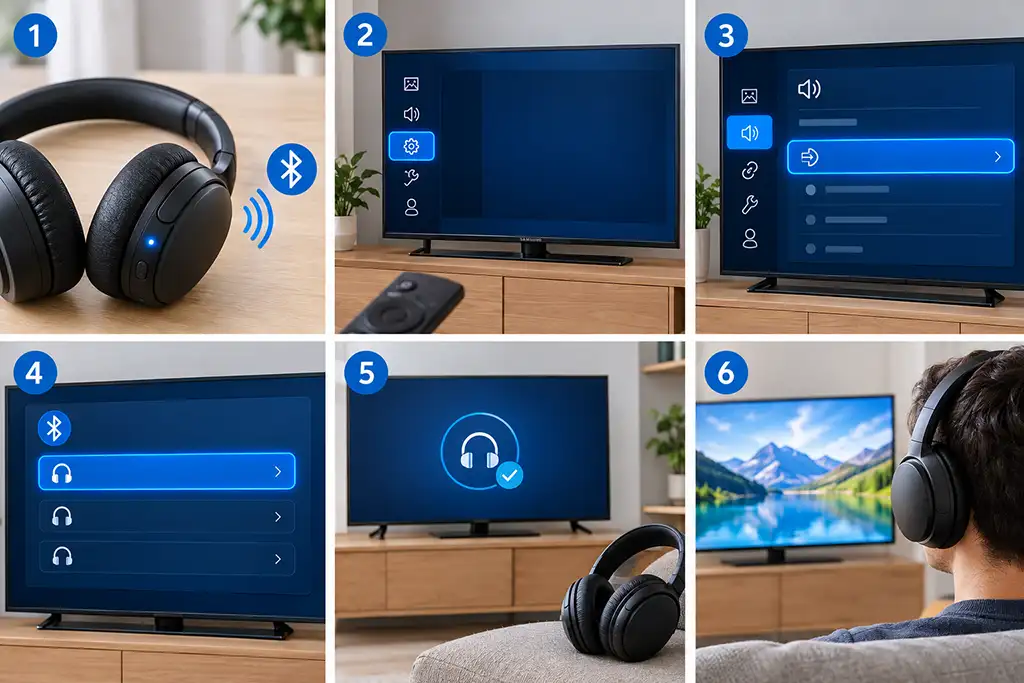
The TV will search for available Bluetooth devices. Select your headphones from the list and confirm the connection. Keep in mind that headphones usually remain in pairing mode for only a few minutes, so you should complete the pairing process shortly after activating it.
The menu names may vary slightly depending on the Samsung TV model and software version. If the menu is different, look for Audio Output and Bluetooth Speaker List in the sound settings.
Once the headphones are connected, the TV will automatically send audio to them instead of the built-in speakers.
If you don’t see the Bluetooth Speaker List option under Audio Output, your TV may not support Bluetooth audio. In this case, check the specifications or user manual for your specific model. This is particularly relevant for older Samsung TVs, especially models made before 2020, when Bluetooth audio support was not available on all models.
Connecting Wired Headphones to a Samsung TV
Some Samsung TVs are equipped with a 3.5 mm headphone jack. If your TV has this jack, you can connect standard wired headphones directly to it.
Simply plug the headphones into the headphone jack. The TV may automatically switch the audio output to the headphones. The headphone jack has a contact that opens when the headphone plug is inserted, and the audio is then transmitted only to the headphones.
How to Connect Wireless Headphones Without Bluetooth
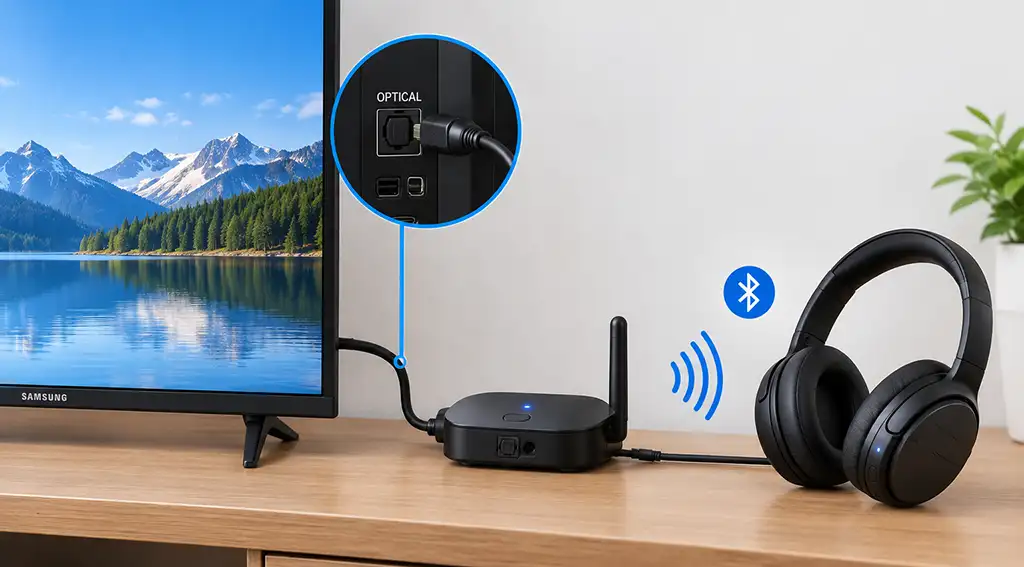
If your Samsung TV doesn’t support Bluetooth, you can still use wireless headphones with a separate transmitter.
Wireless headphone systems typically include a transmitter or a base station. The transmitter connects to the TV’s audio output, which can be a standard audio output, HDMI, or optical output, while the headphones connect to the transmitter wirelessly. The transmitter requires power, which it can receive from the TV’s USB port or from a wall outlet.
For example, when using an optical connection, the connection diagram might look like this:
Samsung TV → optical cable → wireless headphone transmitter → headphones
The exact connection setup depends on the transmitter, the ports available on both the TV and the transmitter, and your preferences. When using a standard 3.5 mm headphone jack, no additional action is required to switch the audio. In other cases, you’ll need to select the device you want to use for audio output in the TV settings.
My Samsung TV Isn’t Detecting My Bluetooth Headphones
The Bluetooth protocol has some drawbacks, including connection problems and occasional issues with audio transmission. These problems don’t occur very often, but they can happen. If you’ve used the headphones before but they no longer connect to the TV via Bluetooth, you may need to reconnect them.
If your headphones don’t appear in the list of available Bluetooth devices, check the following.
Make sure the headphones aren’t connected to another device, such as a smartphone or computer. Disconnect them from that device before attempting to connect them to the TV. Also, keep the headphones close to the TV during the initial pairing process. This is one of the requirements for successful pairing. If you experience problems with audio transmission, we recommend disconnecting and reconnecting the headphones.
Can I connect two pairs of Bluetooth headphones to a Samsung TV?
Some newer Samsung TV models support the Multi Connect feature, which allows you to connect multiple audio devices via Bluetooth at the same time. However, this feature is not available on all models.
If your TV supports Multi Connect, the available Bluetooth devices and connection options will be displayed in the Bluetooth audio settings. Older Samsung TV models generally support connecting only one Bluetooth audio device at a time.