
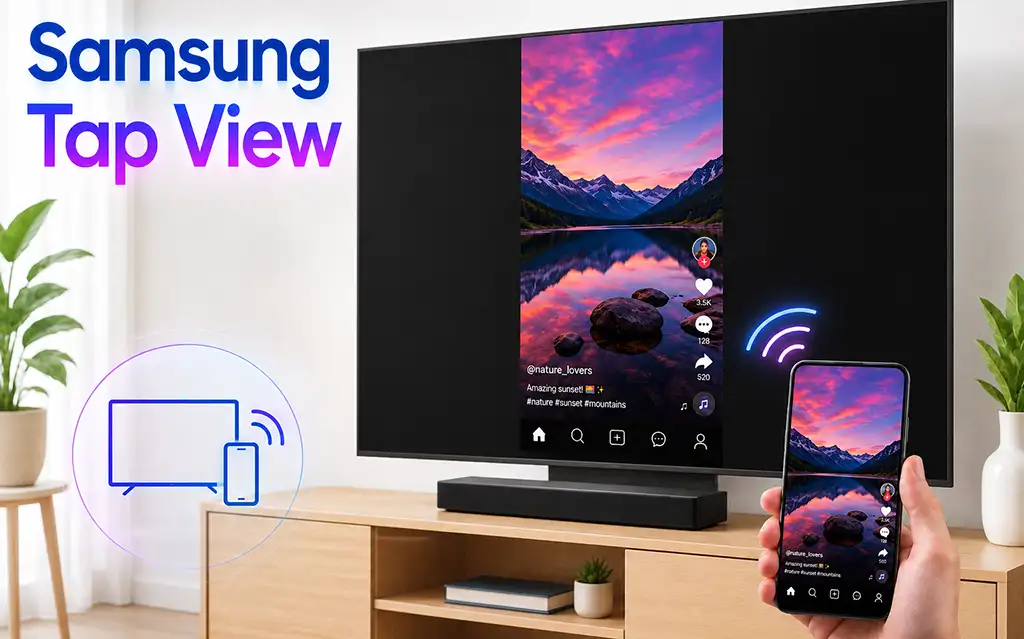
Samsung Tap View is a feature that allows you to mirror the screen of a compatible Samsung Galaxy smartphone on a compatible Samsung TV by simply touching the phone to the TV. It provides a quick way to start screen mirroring without manually searching for the TV in the phone’s settings.
Samsung Tap View uses NFC to detect the smartphone and initiate the connection. NFC itself does not transmit the phone’s screen. After the connection is initiated, the actual screen mirroring takes place over a direct Wi-Fi connection between the smartphone and TV. On supported devices, this direct connection uses Wi-Fi Direct.
This means that Tap View does not normally require the smartphone and TV to be connected to the same home Wi-Fi network or to communicate through a Wi-Fi router.
Setup and how Samsung Tap View works
Samsung Tap View combines NFC and Wi-Fi technologies to make screen mirroring between a compatible smartphone and Samsung TV quick and easy.
The connection process works as follows:
Enable Tap View on the Samsung TV. The TV must support the Tap View feature.
Enable NFC on a compatible smartphone. NFC allows the smartphone to communicate with the TV when the devices are brought close together. Tap View must also be enabled in the SmartThings app on the smartphone. Depending on the version of the SmartThings app, you may need to register the TV on your mobile device. Open the SmartThings app, select “Settings,” and turn the “Tap View” and “Tap Sound” options to “On.” When connecting for the first time, select “Allow” in the pop-up window on the TV.
Hold the smartphone close to the TV. On supported Samsung TVs, the NFC sensor is located in the upper-right corner of the TV. Bring the smartphone close to this area to initiate the connection.
The TV detects the smartphone. The TV’s NFC sensor recognizes the smartphone and uses NFC to identify the device and initiate the screen-mirroring connection.
A direct Wi-Fi connection is established. The smartphone and TV establish a direct wireless connection to transmit the mirrored screen and audio.
Screen mirroring begins. The content displayed on the smartphone is shown on the TV screen.
The key point is that NFC is used to detect the smartphone and initiate the connection, while Wi-Fi handles the actual transmission of the screen and audio.
Tap View vs Smart View
Samsung Tap View and Samsung Smart View are related to screen mirroring, but they provide different ways of starting the connection.
With Smart View, the user normally opens the feature on a compatible Galaxy smartphone and selects a compatible Samsung TV.
With Tap View, NFC makes the initial connection easier. The user can simply touch the smartphone to the TV to start the screen-mirroring process.
The underlying idea is therefore different mainly in terms of connection setup:
| Feature | Samsung Tap View | Samsung Smart View |
|---|---|---|
| Screen mirroring | Yes | Yes |
| NFC used for setup | Yes | Not required |
| Touch phone to TV | Yes | No |
| Direct Wi-Fi connection | Yes | Yes |
| Manual TV selection in settings | only once, during the initial setup | every time you connect |
Tap View can therefore be considered a convenient NFC-assisted way to start screen mirroring rather than a completely separate video-transmission technology.
Samsung TVs with Tap View support
In 2020, Samsung introduced Tap View as a convenient way to mirror the screen of a compatible Galaxy smartphone to a Samsung TV. Initially, this feature was available on premium Samsung TV models from the 2020 lineup.
In 2020, Tap View was supported on Samsung TVs, including QLED, UHD, Lifestyle, and Outdoor models. Compatible models included the Q950TS, Q900TS, Q800T, Q95T, Q90T, Q80T, Q70T, Q60T, TU8500, TU8000, and TU7000, as well as The Sero LS05T, The Frame LS03T, The Serif LS01T, and The Terrace LST7T.
This feature continued to be supported on some Samsung TVs released in subsequent years. Samsung’s documentation states that support depends on the TV model and the region where the TV was sold. Therefore, there is no single list of all supported TVs.
To find out whether your Samsung TV supports Tap View, go to the TV menu and check the Connection Guide under Left directional button > Connected Devices > Connection Guide. If Tap View is described in the Connection Guide or the relevant section of the user manual, the TV has an NFC sensor and supports this feature. If Tap View is not mentioned, the TV does not support the feature.