

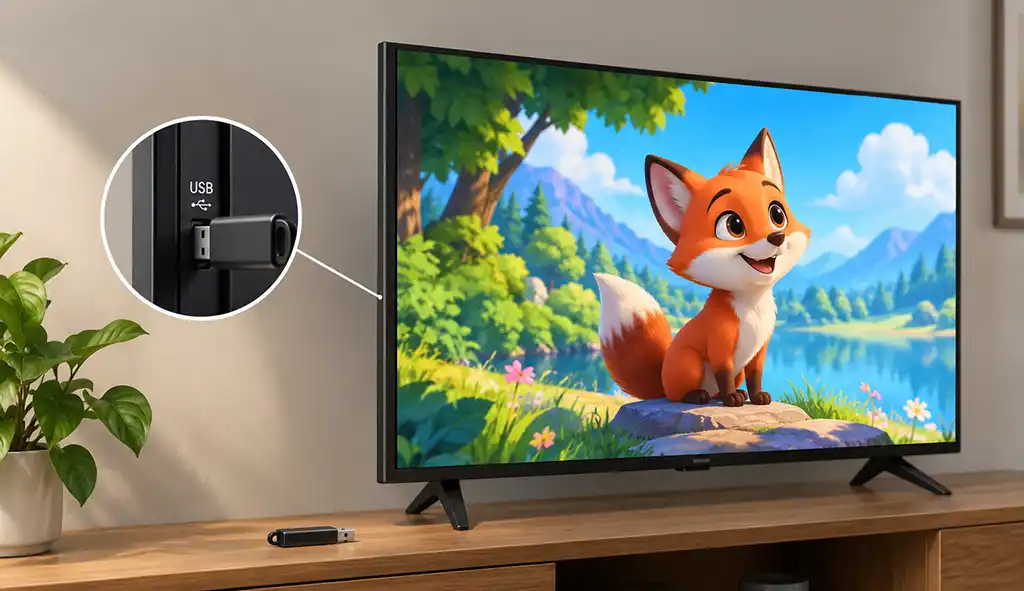
TVs are equipped with built-in media player apps that allow you to play videos, view photos, and listen to music directly from a USB drive. Although the basic functions are the same across most TV brands, each manufacturer uses its own name for its media player. For example, Samsung used the name ConnectShare in older TV models and in its documentation. ConnectShare is the brand name for this feature, not a separate technology.
The available playback options depend on the TV’s media player, the USB drive’s file system, file formats and codecs, as well as the TV’s hardware and software limitations.
Today the feature is used much less than it once was, because most viewing has moved online to streaming services and apps. USB playback still helps with home videos, family photos, downloaded files and places without a good internet connection. This guide shows what the feature is called on each brand, how to start playback, which drives and files work, and how to fix the usual problems.
| Brand | Media player or feature name | How to open it |
|---|---|---|
| Samsung | ConnectShare (older models); USB media playback (newer models). | Source → USB device or Connected Device |
| LG | Media Player | Connect the drive and select it from the pop-up menu, or open Home → Media Player |
| Sony | Media, Connected Devices or Media Player on older models | Home → Media or Connected Devices → USB, depending on the model |
| TCL (Roku TV) | Roku Media Player | Home → Roku Media Player |
| Philips (older TVs) | Multimedia / Browse USB | My Content → Multimedia |
| Hisense | Media Player | Open Media Player or select the USB input |
| Panasonic (older TVs) | Media Player | See the model’s user manual |
USB Drive Compatibility
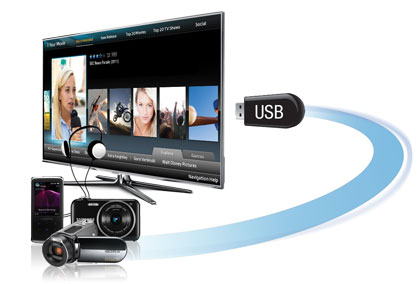
Depending on the model, a TV may support FAT32, exFAT, NTFS, or other file systems. For example, some Samsung TVs support FAT, exFAT, and NTFS, while certain older models have more limited compatibility. LG TVs commonly support FAT32 and NTFS, and Roku TVs support several file systems, including FAT16, FAT32, exFAT, and NTFS.
File system compatibility is only one part of USB playback. The TV must also support the video or audio file’s container and codecs. If the TV does not recognize the drive or cannot play a particular file, check the specifications and user manual for your exact model.
How to Play a Video from a USB Drive
Playing a video from a USB drive is usually straightforward. On many modern TVs, connecting a USB drive opens the media player automatically or displays a notification prompting you to open it. If this does not happen, open the TV’s media player from the Home screen or select the USB drive in the Source, Input, or Connected Devices menu.
Connect the USB drive directly to the TV’s USB port and select the video you want to watch. Use the remote control to start playback, pause the video, rewind, or fast-forward. When you finish watching, eject the USB drive through the TV’s menu if this option is available, then disconnect it.
Why Some Video Files Won’t Play on Your TV
| TV brand | Video format support | Important limitations |
|---|---|---|
| Samsung | Supports common video containers, including MP4, AVI and MKV on compatible models | Supported codecs vary by model and year. DivX and DTS are not supported on Samsung TVs released in 2018 or later. |
| LG | Supports common containers such as MP4, MKV and AVI | Supported codecs vary by model and year. DTS audio support is model-dependent, so check the TV’s specifications. |
| Sony | Supports multiple video formats listed in the TV’s Help Guide | Compatibility depends on the model, resolution and media player being used. 4K video cannot be played on 2K models. |
| TCL Roku TV | Supports H.264 video in MKV, MP4 and MOV containers. Some 4K models also support HEVC and VP9. | Support depends on the TV model and its capabilities. Unsupported files may not appear in the media player. |
| Vizio | Supports selected video formats through its USB Media Player | Supported formats and USB drive requirements vary by model. Some older models require a FAT32-formatted USB flash drive. |
| Hisense | Supports common formats, including H.264 and, on compatible models, H.265/HEVC | Supported containers, codecs and USB file systems vary by model and region. |
| Panasonic | Supports video playback from USB on compatible models | Supported formats and codecs depend on the TV model and year. Check the user manual for the exact specifications. |
| Philips | Supports USB video playback on compatible models | Format support and menu options vary by model and operating system. |
| Xiaomi | Supports a range of local video formats through USB playback | Supported codecs and file systems vary by model and software version. |
The file extension alone does not determine whether a video will play. For example, two MP4 files may use different video and audio codecs, and a TV may support one but not the other. Before troubleshooting, check the supported formats in your TV’s user manual or Help Guide. If a file is incompatible, converting it to a supported format may solve the problem.

[…] e far risaltare la bellissima linea minimal di questo Samsung. Grazie anche al “ConnectShare” potrete guardare tutta una serie di contenuti soltanto collegando un USB o HHD al tv. Nulla […]