

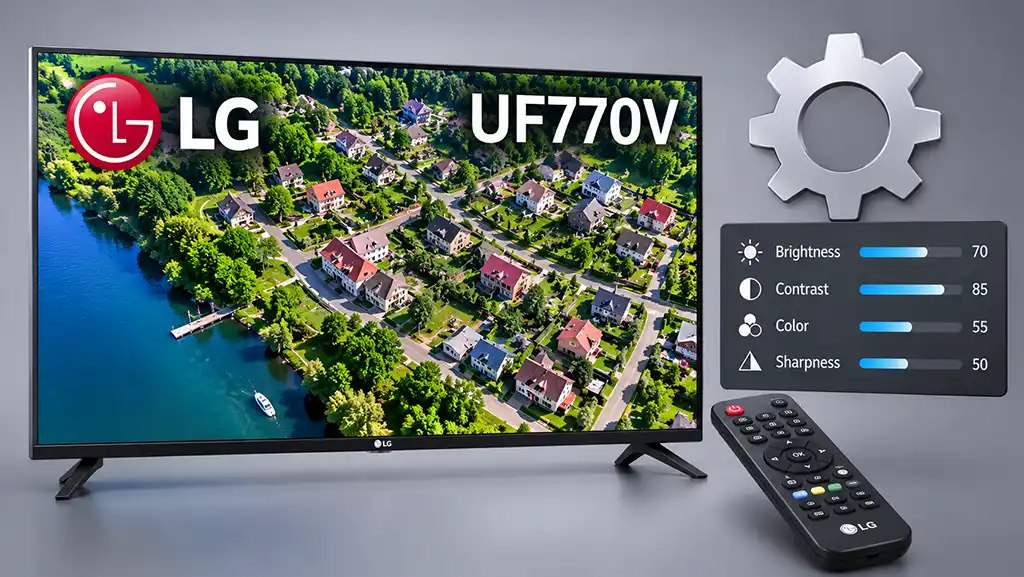
Applies to: LG UF770V (Europe) and UF772V (UK) series, screen sizes 40, 43, 48, 49, 55, 60 and 70 inches.
Here are the recommended picture settings for the LG UF770V series. In the UK the model is marked slightly differently, as UF772V. Even though the factory picture is usable, a few small adjustments can give you a nicer image. The values below are a good starting point, and you can fine-tune them to your room and taste.
Quick start
- Set Picture Mode to Expert 1.
- Turn off all image-processing features (noise reduction, Super Resolution, Dynamic Contrast, Edge Enhancer, TruMotion).
- Set Aspect Ratio to Just Scan so the picture is shown 1:1 without cropping.
- Set Backlight to suit your room. This is the only setting you will need to change regularly.
Recommended settings
| Setting | Value |
|---|---|
| PICTURE | |
| Picture Mode | ISF Expert 1 |
| Backlight | 32 (raise in brighter rooms, up to 100) |
| Contrast | 100 |
| Brightness | 48 |
| Energy Saving | Off |
| H Sharpness | 0 |
| V Sharpness | 0 |
| Color | 50 |
| Tint | 0 |
| PICTURE OPTIONS | |
| Noise Reduction | Off |
| MPEG Noise Reduction | Off |
| Black Level | Low |
| LED Local Dimming | Off |
| TruMotion | Off |
| EXPERT CONTROL | |
| Dynamic Contrast | Off |
| Super Resolution | Off |
| Color Gamut | Standard |
| Edge Enhancer | Off |
| Color Filter | Off |
| Gamma | 2.2 |
| Expert Pattern | Off |
| Aspect Ratio | Just Scan |
| WHITE BALANCE | |
| Color Temperature | Warm2 |
| Method | 2 Points |
| Pattern | Outer |
| Point | High |
| Red | −7 |
| Green | −13 |
| Blue | −2 |
Adjusting brightness to your room
Backlight controls how bright the screen is. Use about 30–35 in a dark room, and as the room gets brighter, raise it gradually, up to 100 in strong afternoon sunlight. Adjusting Backlight is better than changing Contrast or Brightness to compensate for room light, so once those two are set, you can leave them alone.
The values Contrast 100 and Brightness 48 are a good starting point, but it is worth verifying them on your own TV with a test image. For Brightness, the darkest shades in a dark scene should be visible, but the black bars on a movie should not look gray. For Contrast, bright details such as clouds or white clothing should keep their texture and not turn into flat white patches. If they do, lower Contrast a few points.
Why most processing features are turned off
Most of the features in the Picture Options and Expert Control menus change the image artificially, which is why they are switched off here. Noise Reduction and MPEG Noise Reduction soften fine detail, so turn them on only for very poor sources, such as old low-quality video files. Dynamic Contrast and Edge Enhancer change contrast and add halos around edges, and Super Resolution adds artificial sharpening, so keeping all three off gives a more natural picture. TruMotion avoids the artificial “soap opera” look when it is off. For fast sports you can try a low TruMotion setting, but many viewers prefer it off.
Two options deserve a closer look. Black Level: Low is normally used for standard video signals, while High is intended for full-range sources such as a PC. If blacks look gray or shadow detail is lost with your source, try the other option. LED Local Dimming can make blacks look deeper but may cause brightness changes in dark scenes, so leave it off first. If you want to experiment, try Low and compare. Finally, Just Scan displays the image pixel by pixel, without the overscan that crops the edges of the picture, and Expert Pattern and the Pattern option are test patterns used only during calibration, so Expert Pattern should stay off for normal viewing.
White balance
Warm2 gives a warmer white than the cooler presets and is the color temperature used in these settings. The Red, Green and Blue values in the table (−7, −13 and −2) were found on one TV. Panels differ from unit to unit, so these numbers are only a starting point and may tint the picture slightly on your set. If whites look greenish or pinkish, set all three values back to 0 and adjust them in small steps.
For a natural picture on the LG UF770V/UF772V, turn off all enhancements, use Just Scan, choose Warm2 and adjust only the Backlight to match the room. Use the white balance values only as a starting point and fine-tune them on your own TV.


Did you just copy these from that rtd website?